
A self-hosted AI image generator lets you create illustrations, concept art, marketing graphics, and other visual content on infrastructure you control. Unlike a hosted generation service, it gives you direct control over the interface, models, workflows, prompts, and generated files.
That control comes with practical requirements. You need hardware compatible with your chosen model, enough GPU memory, storage for model files, and the technical knowledge to install, secure, and maintain the software. Before choosing a tool, determine whether you need local privacy, advanced workflow customization, API access, or simply an easier way to generate images.
These considerations follow the broader principles of self-hosting apps and data, but image generation adds an important constraint: most current models perform best with a supported GPU.
What Is a Self-Hosted AI Image Generator?
A self-hosted AI image generator runs on your computer, workstation or private server. For a fully local workflow, both the interface and model inference must run on infrastructure you control. An installed interface can also call a third-party API; those requests leave your machine.
The interface and image model are usually separate components. An interface such as ComfyUI or InvokeAI manages prompts, generation settings, model files, and workflows. A model family such as Stable Diffusion or FLUX performs the underlying image generation.
Depending on the interface and model, a self-hosted installation can:
- Generate images from text prompts
- Modify source images through image-to-image generation
- Replace or extend parts of an image through inpainting and outpainting
- Create variations of an existing image
- Load compatible checkpoints and LoRAs
- Build reusable generation workflows
- Expose an API for other applications
This architecture makes it possible to change interfaces without abandoning every model, although file formats and feature support vary. Always confirm that the interface supports the exact model architecture and workflow components you intend to use.
Why Self-Host AI Image Generation?

Self-hosting makes the most sense when control, privacy, or customization matters more than having the quickest setup.
Keep Prompts and Files Under Your Control
Prompts, source images, and generated files can remain within infrastructure you manage. This may be useful when working with confidential drafts or internal creative assets. Check each workflow node and integration: ComfyUI partner nodes and Invoke external-model integrations can send requests to outside providers. A local browser address does not prove local inference.
Self-hosting does not guarantee privacy by itself. An exposed interface, weak credentials, untrusted extensions, or poor storage permissions can still disclose data. You remain responsible for securing the operating system, application, network, and backups.
Customize Models and Workflows
Self-hosted interfaces can provide access to custom checkpoints, LoRAs, ControlNet components, samplers, extensions, and repeatable workflows. The available features depend on the interface and model architecture.
This flexibility is valuable when a hosted service does not support a required model, style adapter, or automated pipeline.
Reduce Dependence on a Hosted Platform
Running the software yourself reduces dependence on one provider’s interface, pricing, availability, and content policies. It does not remove every external dependency because model repositories, software packages, and extensions may still come from third parties.
Support Frequent or Automated Generation
Local hardware can be economical for sustained workloads when utilization is high enough to justify the purchase, electricity, and maintenance costs. For occasional generation, a hosted service or rented GPU may cost less.
Calculate the full cost rather than comparing only subscription fees. Include the GPU, system memory, storage, power consumption, backups, administration time, and any cloud infrastructure charges.
What to Check Before Choosing a Tool
The interface is only one part of the decision. Evaluate the complete combination of software, model, hardware, and intended workflow.
GPU Compatibility and VRAM
GPU memory, or VRAM, is often the main constraint. Required capacity varies according to model architecture, precision, resolution, batch size, attention implementation, and whether the software can offload parts of the model to system memory.
Use requirements published for the exact interface and model combination. The Hardware Requirements section below gives a scoped example from Invoke’s documentation, not a universal minimum. Quantization, offloading, additional models and batch size can change both memory use and response time.
Model and Feature Compatibility
An interface that supports Stable Diffusion does not necessarily support every Stable Diffusion derivative or FLUX variant. Check support for the exact architecture, checkpoint format, LoRA format, ControlNet implementation, and other components you need.
Ease of Use
Some tools provide a conventional prompt-based interface, while others expose each stage of the generation pipeline. A simpler interface is easier to learn, but a node-based system can make complex workflows easier to inspect and reproduce.
API and Automation Support
If another application must submit prompts or collect generated files, confirm that the tool offers a documented API. Also check how it handles queues, concurrent requests, authentication, timeouts, and output storage.
Licensing
Software licenses and model licenses are separate. An open-source interface does not make every downloadable model suitable for commercial use. Review the license for each model, checkpoint, LoRA, extension, and other dependency before using its output in commercial work.
Open-Source AI Image Generator Interfaces
These five interfaces cover different ways to work with image models. Documentation was checked on 6 October 2026. The official screenshots show publisher-provided examples, sometimes from older interface versions; prompts, generated artwork, memory figures and timings in them are not results from our testing. Select an image to inspect the full-size version.
| Interface | Useful when you need | Main check before adoption |
|---|---|---|
| ComfyUI | Reusable node graphs and automated workflows | Model/node compatibility and external API use |
| InvokeAI | Canvas editing with workflow and gallery tools | Model support and hardware for your editing workload |
| AUTOMATIC1111 | Established Stable Diffusion controls and extensions | Exact architecture support and extension dependencies |
| SD.Next | A WebUI with multiple hardware backends | Current GPU, driver and backend compatibility |
| Fooocus | A simplified, established SDXL workflow | Limited LTS; no planned new model architectures |
ComfyUI
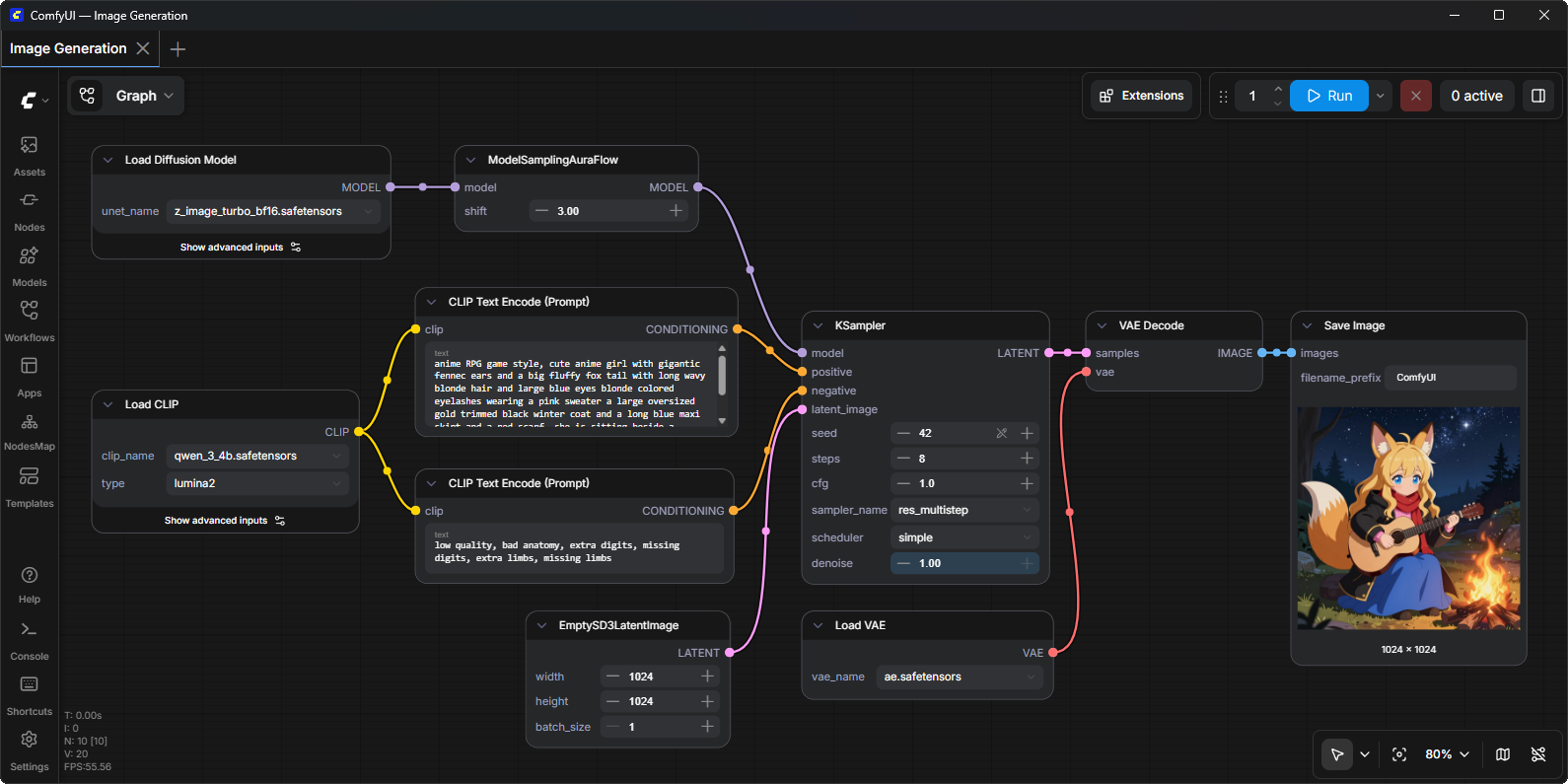
ComfyUI exposes generation as a graph: you connect model loading, prompt encoding, sampling, decoding and output steps. Saved graphs and the local API are useful for repeatable pipelines. Its official example above shows real nodes and sample artwork.
Choose it when controlling the pipeline matters more than minimizing setup. Confirm that the required model and node versions work together. Custom nodes execute code on the host; review their origin and dependencies. Optional partner nodes use external services, so exclude those from a workflow intended to remain local.
InvokeAI
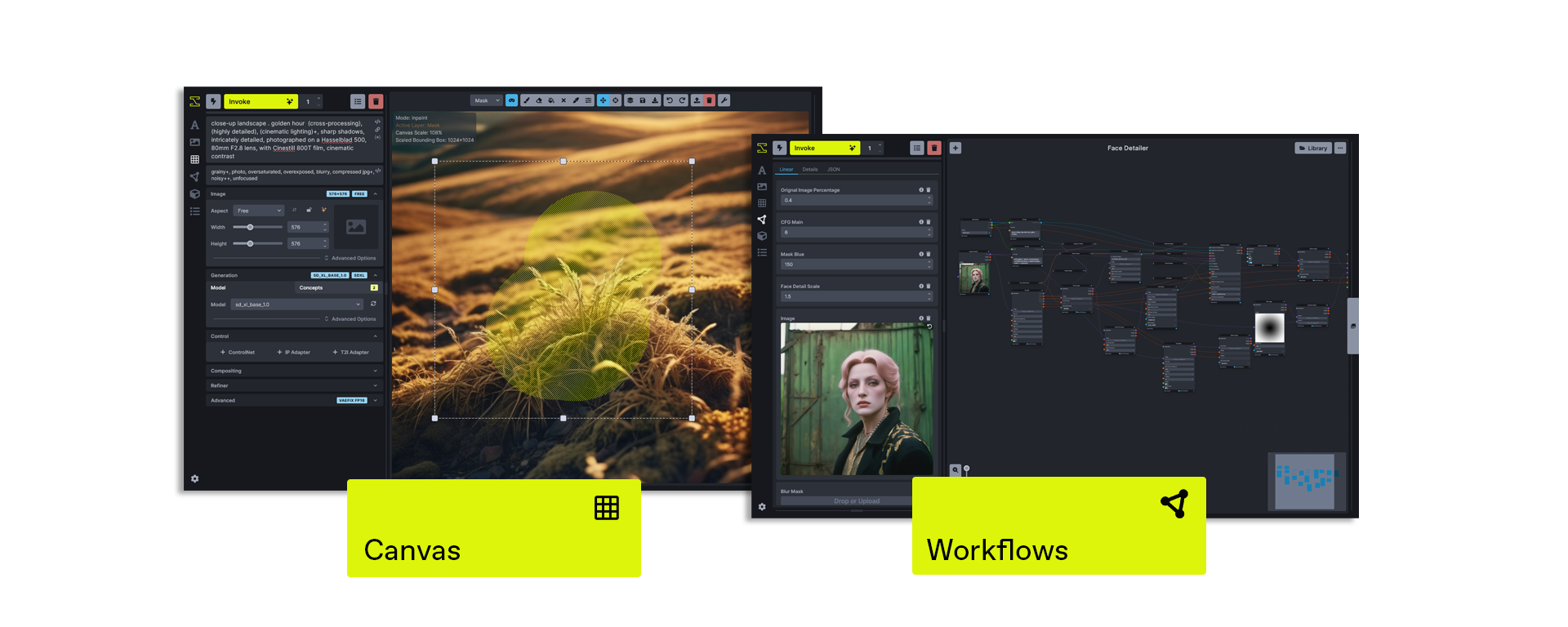
InvokeAI combines a visual canvas, inpainting and outpainting, galleries, model management and node workflows. Its official feature image shows the Canvas and Workflows interfaces together. This suits iterative editing as well as generating an entire image from a prompt.
Use its current model list and installation documentation for your hardware. Hosted Invoke products and optional external-model integrations are separate from running a compatible local model; choose the execution path that matches your privacy requirement.
Stable Diffusion WebUI by AUTOMATIC1111
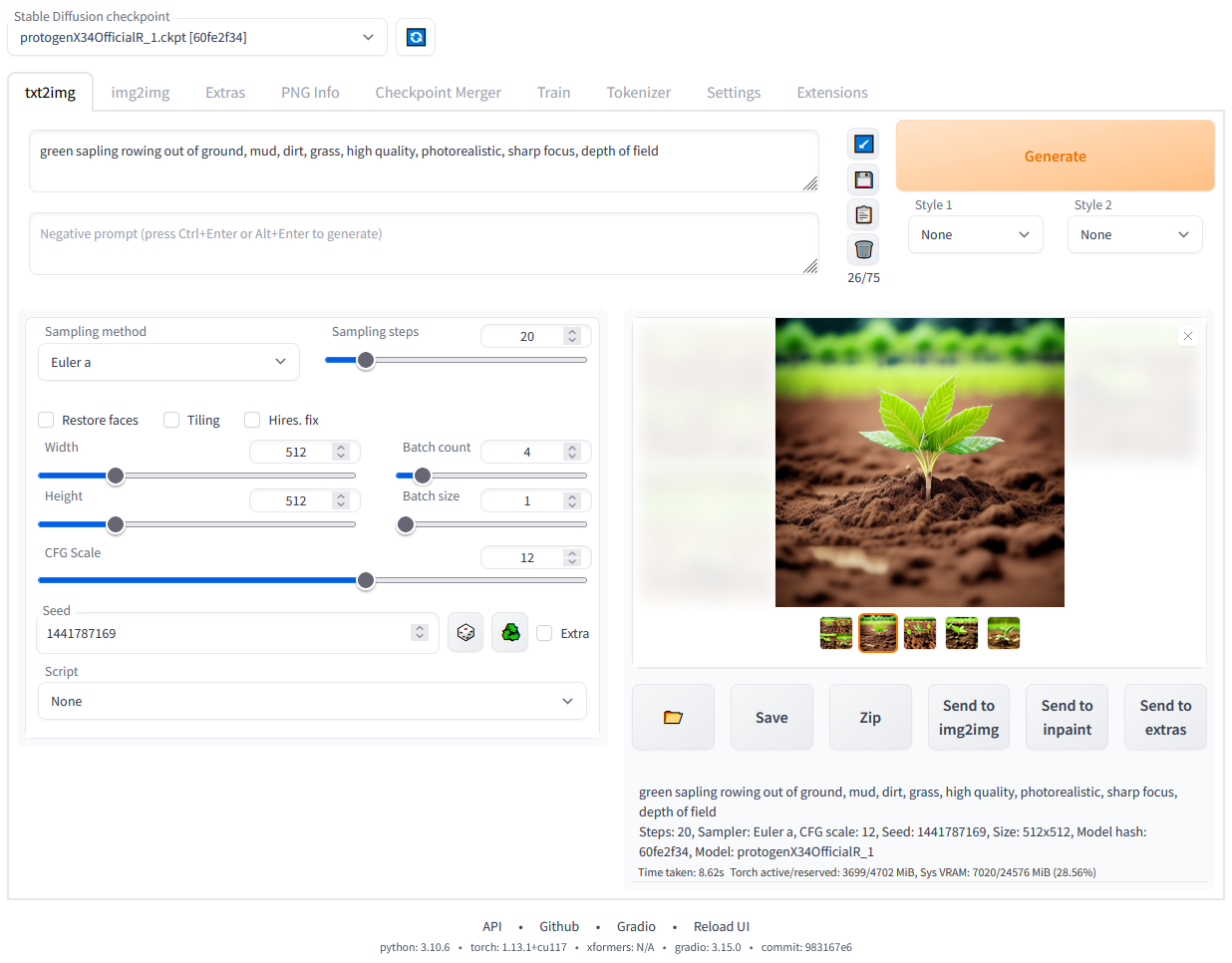
AUTOMATIC1111’s Stable Diffusion WebUI presents prompt fields, sampling controls, image-to-image tools and extensions in a browser. It is useful for established Stable Diffusion workflows. The repository screenshot above is an older interface example; its displayed generation time is not a comparative benchmark.
AUTOMATIC1111 and this Stable Diffusion WebUI are one project, not two tools. Do not assume that a newer model architecture works because another WebUI supports it. Check the exact release and extension compatibility, and test updates on a copy of a known working workflow.
SD.Next
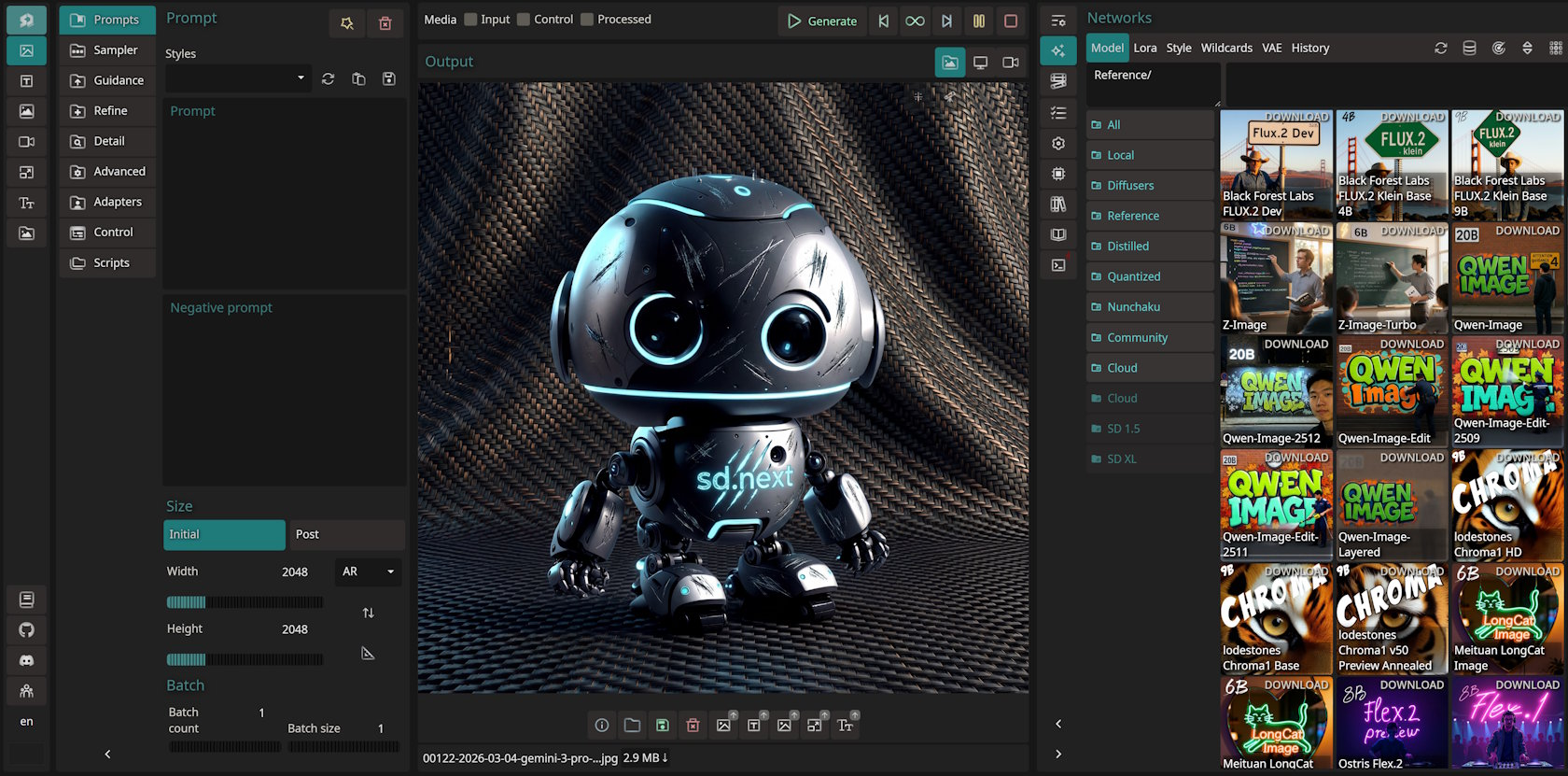
SD.Next is a separate WebUI derived from the AUTOMATIC1111 codebase. It combines generation and editing controls with model management and multiple acceleration backends. Its official desktop screenshot shows the prompt area, output and model browser.
It is worth evaluating when backend choice matters, such as matching a supported NVIDIA, AMD or Intel GPU to its current installation path. The repository links platform-specific guides; advertised backend support is not proof that every GPU, driver and model combination works. Verify the exact combination before renting hardware.
Fooocus

Fooocus simplifies SDXL generation by choosing many settings automatically. The official example above shows the prompt-and-generate interface with sample outputs. It can suit an existing SDXL workflow when you do not need detailed graph control.
The maintainers explicitly describe Fooocus as limited long-term support, with bug fixes only and no current plan to add newer model architectures. Treat it as a constrained SDXL option rather than the default for a growing model pipeline. Use the linked repository: the maintainers warn that similarly named websites are unofficial.
Choosing an Image Model

The interface and the model weights are separate choices. Start with a model supported by your selected interface and hardware; then check the exact checkpoint, encoder, VAE and adapter files required by its documented workflow. A family name alone does not specify one compatible download.
Stable Diffusion 1.5 and SDXL remain common reference architectures for existing workflows. The official SDXL model card documents the base/refiner arrangement and OpenRAIL++ terms. An older architecture may suit a constrained workload, but it does not establish output quality for your prompts without testing.
Licenses can differ within one family. For example, FLUX.1 [schnell] is offered under Apache 2.0, while FLUX.1 [dev] carries a separate non-commercial model license with distinct provisions for generated outputs. Read the actual terms for the weights and intended use; do not transfer one variant’s permission to another.
A LoRA is an additional set of weights used with a compatible base model. Check the architecture and the LoRA’s own terms. Prefer publisher-provided SafeTensors files where available: the format avoids Python pickle execution, but it does not make custom nodes, extensions or downloaded code trustworthy.
Hardware Requirements
As with planning a self-hosted large language model, hardware needs depend on the selected model and workload rather than the interface name alone.
GPU
A supported GPU is the usual choice for interactive image generation. The complete stack matters: GPU model, operating system, driver, runtime, interface version and model configuration. Apple silicon uses shared system memory rather than a separate pool of discrete GPU VRAM.
Some interfaces support CPU-only execution, but this does not establish an acceptable generation time. Measure a representative request before treating it as interactive infrastructure. A server running the web interface can still delegate generation to a separate GPU worker.
The following three rows reproduce the relevant Windows/Linux entries from Invoke’s hardware guide, checked 6 October 2026. The guide describes rough requirements for performance and notes that lower VRAM can work more slowly. These are documentation guidelines for Invoke, not our measurements or universal requirements for other tools.
| Model family | Reference resolution | VRAM | System RAM |
|---|---|---|---|
| SD1.5 | 512 × 512 | 4 GB | 8 GB |
| SDXL | 1024 × 1024 | 8 GB | 16 GB |
| FLUX.1 | 1024 × 1024 | 10 GB | 32 GB |
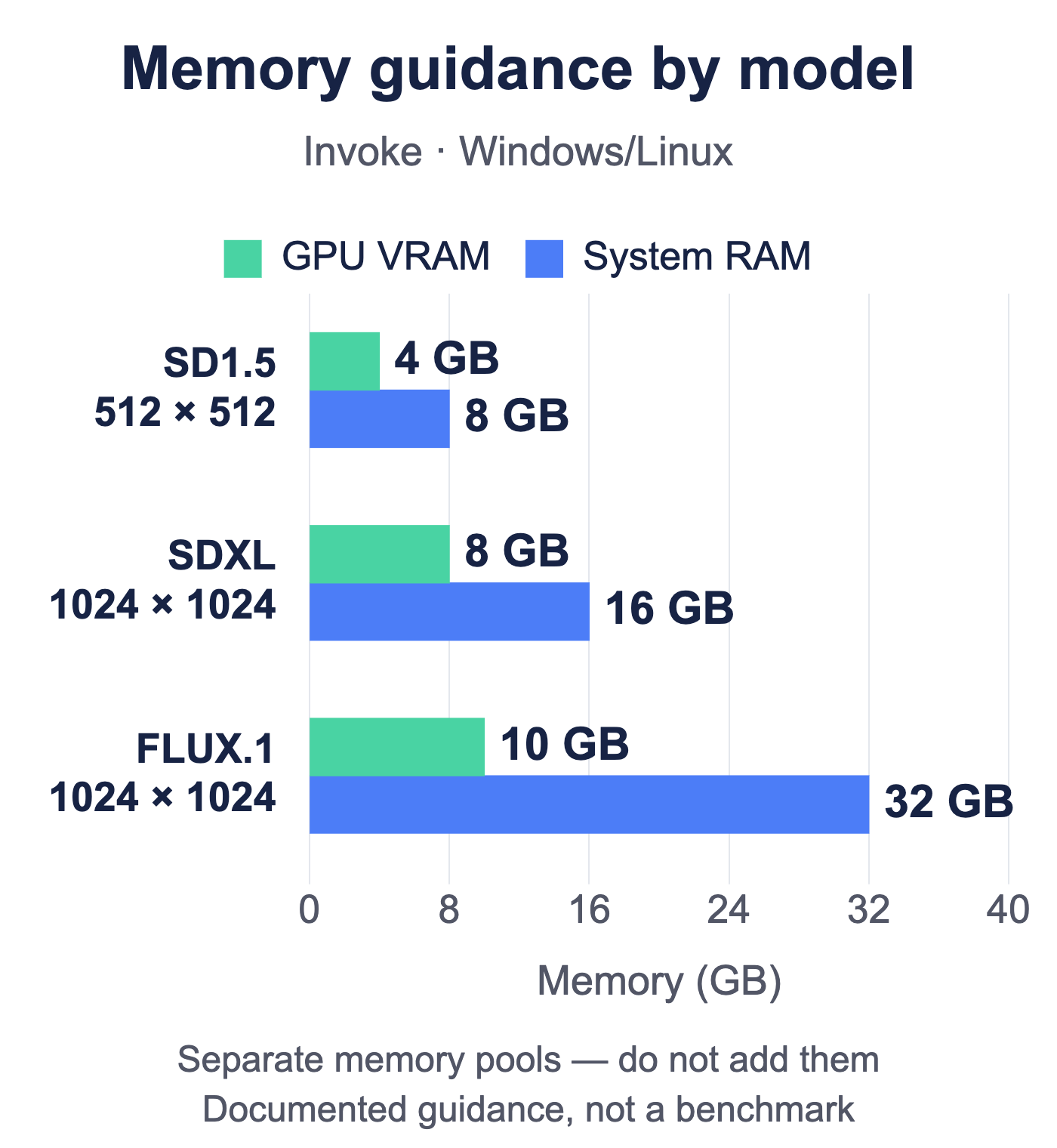
The same guide lists NVIDIA 10xx+ for its SD1.5 row and 20xx+ for SDXL and FLUX.1. It documents AMD on Linux and Intel Arc on Windows/Linux separately. Confirm current driver and model requirements instead of treating memory capacity as the only compatibility test.
System Memory
System RAM is used to load models, support offloading, run the interface, and process larger workflows. Insufficient RAM can cause failures or heavy use of swap storage, which significantly reduces performance.
Storage
Model files can consume several gigabytes each, and a collection of checkpoints, LoRAs, caches, and generated images can quickly require hundreds of gigabytes. Use fast storage for active models and define a retention or archival policy for outputs.
VPS and Server Considerations
A standard CPU-only VPS can host supporting components such as a reverse proxy, authentication service, job queue, application API, or output gallery. It should not be presented as the image-generation host unless the plan explicitly provides a compatible GPU with enough VRAM.
For example, a CPU VPS can host an authenticated application that passes permitted jobs over a private connection to a separate GPU worker. Return job status and output through the application; do not expose the worker’s administrative interface to users. The Docker VPS hosting guide covers dependency isolation, but a container does not add GPU capacity to its host.
How to Set Up a Self-Hosted AI Image Generator
A safe deployment follows a model-first process rather than installing an interface and checking compatibility afterward.
1. Define the Workload
Decide which model, target resolution, expected generation volume, editing features, and automation requirements you need.
2. Select a Compatible Interface
Check the project’s current documentation for support for your model architecture, operating system, GPU, and required workflow components.
3. Verify Hardware Capacity
Confirm GPU support, available VRAM, system RAM, free storage, and power requirements. If renting infrastructure, verify that GPU access is included rather than assuming every VPS supports acceleration.
4. Prepare the Operating System
Install the required GPU drivers, runtime, Python version, package manager, and other documented dependencies. Pin versions where practical to reduce unexpected breakage after updates.
5. Install the Interface
Use the project’s official installation instructions or official container image when available. Avoid copying commands from unverified tutorials without checking what they install.
6. Download Models from Trusted Sources
Confirm the model architecture, file format, checksum when provided, and license. Store models separately from generated output so they can be backed up or replaced independently.
7. Test a Basic Workflow
Start with one supported model, a standard resolution, and a single-image batch. Record VRAM, RAM, generation time, and storage use before adding LoRAs, upscalers, or complex node graphs.
8. Secure Remote Access
Do not expose an unauthenticated generation interface directly to the public internet. Place it behind authentication and TLS, restrict inbound traffic, and use a VPN or private network where practical.
9. Plan Updates and Backups
Back up workflows, configuration files, prompts that need to be retained, and irreplaceable output. Models that can be downloaded again may not need the same backup priority as custom training data or business assets. Save model identifiers and hashes with the workflow, and test restoring the configuration and a representative output. Keep prompt or image retention limited to what the application needs.
Self-Hosted vs. Hosted Image Generation

Hosted services are easier to start using because the provider manages the GPU, software, updates, and scaling. They are often the better choice for occasional users or teams that do not want to administer machine-learning infrastructure.
Self-hosting provides more control over models, files, integrations, and workflow configuration. It may also support offline operation, depending on the software and whether all required files have already been downloaded.
The trade-off is operational responsibility. You must manage hardware compatibility, updates, storage, authentication, network exposure, backups, and model licenses. Self-hosting is therefore most attractive when its privacy or customization benefits solve a specific requirement rather than when it is chosen only to avoid a subscription.
Security and Maintenance
Treat an AI image interface as an administrative application capable of consuming substantial compute resources and accessing local files.
Keep the operating system, GPU drivers, interface, and dependencies updated. Review release notes before upgrading a production installation because changes can affect custom nodes, extensions, and saved workflows.
Restrict access with a firewall, private network, VPN, or authenticated reverse proxy. Apply request and queue limits if multiple users share the system so one workload cannot exhaust GPU memory or storage.
Third-party extensions and custom nodes deserve particular scrutiny because they may run arbitrary code. Review their source and permissions, isolate the service from sensitive systems, and avoid running the application as a privileged user. Prompts, seeds and workflow metadata may be embedded in generated images. Inspect exports before sharing them outside the intended audience.
How to Choose the Right Option
Choose according to the problem you need to solve:
- For detailed, repeatable workflows: ComfyUI offers extensive node-based control.
- For canvas-based creation and editing: InvokeAI provides an integrated creative workspace.
- For established Stable Diffusion customization: AUTOMATIC1111’s Stable Diffusion WebUI offers broad settings and extension support.
- For a choice of acceleration backends: evaluate SD.Next against its current platform-specific documentation.
- For an established simplified SDXL workflow: Fooocus is in limited LTS with bug fixes only; account for that maintenance scope.
After selecting an interface, confirm the model license, architecture support, GPU requirements, and expected storage use. A familiar interface cannot compensate for an incompatible model or insufficient VRAM.
Conclusion
A self-hosted AI image generator is a practical choice when you need control over models, prompts, files, editing workflows, or application integrations. It is not automatically cheaper or more private than a hosted service; those outcomes depend on utilization, hardware costs, and how securely the system is operated.
Choose ComfyUI for graph control, InvokeAI for canvas-led editing, AUTOMATIC1111 for an established Stable Diffusion setup, or evaluate SD.Next for a suitable backend path. Keep Fooocus’s limited SDXL maintenance scope in the decision. None of these choices removes the need to test your actual model and hardware.
Choose the model before purchasing or renting infrastructure. Verify GPU compatibility, VRAM, system memory, storage, software support, and licensing for the exact workflow you plan to run. If the available server is CPU-only, use it for supporting services rather than promising practical GPU image generation.
Frequently Asked Questions
Can you self-host an AI image generator?
How much VRAM does a self-hosted image generator need?
Can an AI image generator run on a standard VPS?
Which self-hosted interface is best for beginners?
Is self-hosted AI image generation private?
Can self-hosted AI images be used commercially?