
Containerisation has become a cornerstone of modern application deployment. Docker VPS hosting has become one of the most reliable ways to manage containerised applications at scale, especially when flexibility and full control are required. When you host containers via Docker on a virtual private server (VPS), you gain a strong combination of control, flexibility and cost efficiency. In this article you will learn how running Docker on a VPS differs from other hosting models, what to look for in a suitable VPS, how to install and manage containers effectively and how to optimize performance and security for long-term reliability.
What Is Docker?
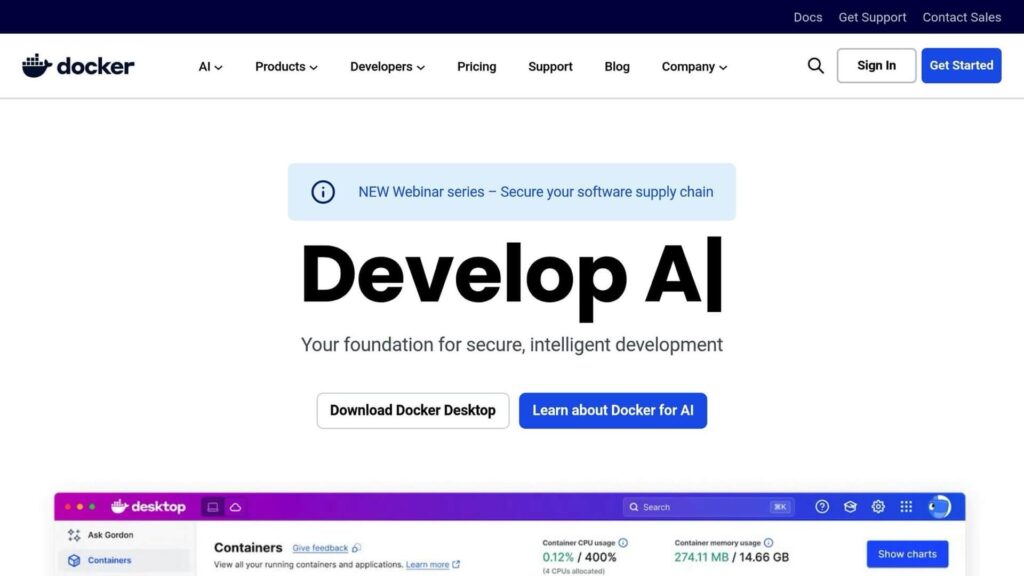
Docker is a platform for packaging applications and their dependencies into isolated units called containers. These containers ensure that the application behaves consistently across development, staging and production environments.
Key Concepts
These are the key concepts of Docker:
- Images: templates defining the container’s file system and configuration.
- Containers: running instances of those images.
- Volumes: persistent storage areas mounted into containers so data survives restarts.
- Networks: isolated virtual networks that link containers internally or expose them externally.
Purpose
By using Docker, you avoid discrepancies between environments and simplify deployment pipelines. This makes moving from a developer’s machine to a VPS smoother and less error-prone.
Why Host Docker on a VPS?
When you run Docker on a VPS, you get the benefits of containerisation plus the advantages of a dedicated virtual server environment. Shared hosting often restricts what you can install and how ports and services run. Fully managed cloud container services offer great ease of use but may lock you into pricing or abstraction layers. A VPS gives you root access, full control, predictable resource allocation and the freedom to run whatever containers and services you need. This is why Docker VPS hosting is often preferred by developers who want stable performance without the restrictions of shared environments. You can map ports, define storage volumes, scale up resources when needed and isolate services without other tenants interfering. As your project grows, you retain control over configuration, network rules and environment variables, making a Docker-on-VPS setup a strong choice for developers, agencies and self-hosters.
VPS Requirements for Running Docker
Not all VPS plans are equally suited for containerised workloads. You need to ensure key aspects are covered.
Recommended Specs
These are the recommended specifications for a VPS used for running Docker
- CPU: At least 2 cores for moderate workloads so containers do not contend excessively.
- RAM: 2–4 GB minimum for basic usage; more (8-16 GB+) if you plan databases, caching layers or multiple services.
- Storage: SSD or better NVMe of at least 25-40 GB so you can store images, logs, volumes and backups.
Compatibility and Infrastructure Needs
You should also keep in mind specific needs in regards to infrastructure and compatibility:
- Virtualisation: Prefer full virtualization (e.g., KVM) rather than container-type virtualization so Docker can use namespaces and cgroups fully.
- Kernel/OS: A modern Linux kernel with namespace and cgroup support, and an OS you manage such as Ubuntu, Debian, Rocky Linux or AlmaLinux.
- Network: Public IPv4 (and ideally IPv6), ability to map ports and open firewall rules.
- Snapshots/backups: Built-in options or provider support for backups and recovery are important for data resilience.
Selecting a VPS that meets these criteria ensures your container ecosystem runs smoothly and you avoid infrastructure bottlenecks. A well-configured VPS with Docker support allows you to deploy services confidently while keeping performance consistent across all environments.
How to Install Docker on a VPS

Once your VPS is provisioned you can install Docker relatively quickly.
Installation Methods:
You can use the following installation methods:
- Use the official Docker repository with your distribution’s package manager (apt, yum).
- Use Docker’s convenience script if it aligns with your security policies.
- Install Docker Compose so you can define and manage multi-container stacks.
Key Steps:
- Update the operating system packages and install any required dependencies (e.g., apt update && apt upgrade).
- Add Docker’s GPG key and repository, then install docker-ce and docker-ce-cli.
- Verify the installation by running a simple container (e.g., docker run hello-world).
- Install Docker Compose (via pip or binary) and test by defining a docker-compose.yml and running docker compose up.
- Configure your firewall and ensure the Docker daemon is set to start on boot, configure storage volumes, and plan for logs.
Following these steps gives you a robust foundation for running a VPS with Docker, allowing you to build and launch containerised applications efficiently.
Running Your First Containers
With Docker installed, you can begin deploying real applications, such as these practical examples:
- Pull a lightweight container like nginx from Docker Hub: docker pull nginx then docker run -d -p 80:80 nginx. This exposes a web server reachable via your VPS IP.
- Persistent storage: Create a host directory (e.g., /srv/data) and map it into a container via -v /srv/data:/data so your data survives container restarts.
- Environment variables: Use -e KEY=value flags or .env files in Compose to configure container behaviour (database credentials, API keys, time-zone settings).
- Port mappings: Use the -p host_port:container_port syntax to expose services externally. Make sure firewall rules on the VPS allow those ports.
These initial steps get you up and running; from here you can add complexity by chaining services, using databases, caches and message brokers all within containers. Running Docker on VPS environments becomes even more powerful when you begin integrating multiple services that communicate through internal networks.
Using Docker Compose for Multi-Container Apps

As you scale beyond a single container, you’ll often deploy multi-container stacks—for example a web server, application backend, database and cache. Docker Compose is designed for that.
Here are some of the most common use cases:
- A web application (e.g., Node.js) linking to a PostgreSQL database container and a Redis cache container.
- Microservices architecture where each service runs in its own container and communicates over internal Docker networks.
- Self-hosted platforms like Nextcloud, Ghost or WordPress where the web front-end, database and storage service each run separately.
In a docker-compose.yml, you define services, networks and volumes, then launch everything with a single docker compose up -d. You can scale services by altering the replicas: field or by using docker compose scale service=2. Compose also simplifies configuration management by centralising environment variables and ensuring containers start in the correct order. For a VPS environment this means easier management and cleaner deployments.
Performance and Security Best Practices

Running containerised services on a VPS reliably for production requires attention to performance and security.
Performance Tips
Monitor resource usage (CPU, RAM, I/O) regularly using tools like top, htop, docker stats, or host-level monitoring. Use resource limits in container configurations (e.g., –memory=512m –cpus=1) to avoid one container dominating. Use NVMe storage or fast SSD and plan your volume layout so that heavy I/O (logs, databases) goes to dedicated volume paths. Prune unused images and containers (docker system prune) to free up disk space and reduce clutter. For higher traffic you may consider using overlay networks, caching services or load-balancing across multiple containers or nodes.
Security Tips
Use a firewall (e.g., ufw, firewalld) to restrict access to only required ports. Run containers as non-root users when possible and avoid giving unnecessary capabilities. Keep the host OS and container-base images updated. Use official or trusted images and scan them for vulnerabilities. Enable Linux security modules like SELinux or AppArmor if available. For networked containers avoid exposing sensitive ports directly to the internet; use internal networks and reverse proxies where appropriate.
Backups
Plan and execute backups of your volumes, databases and configuration files. On the VPS level consider snapshots or external backups managed by your provider. Regularly test restores so you are confident that recovery works. Together performance tuning, security practices and backup planning ensure a stable container environment on your VPS.
Best VPS Providers for Docker Hosting
Selecting the right VPS provider is crucial for Docker workloads. You should evaluate the provider’s virtualization type, hardware quality, storage performance, network throughput, datacenter locations and support responsiveness. Advantages of a strong provider include full root access, modern NVMe or SSD drives, KVM or equivalent virtualization (not a restricted container-based VM), unmetered or generous bandwidth, fast deployment and global presence for low latency. Taking time to compare providers will help you avoid locked-in, under-performing or poorly supported environments, and ensure your container infrastructure remains robust as you grow. When selecting Docker VPS hosting, prioritising providers with KVM virtualisation, fast NVMe storage and reliable networks will lead to the best long-term results.
Common Issues and Troubleshooting
Even with a solid setup, you may run into common issues when running Docker on a VPS. For example containers may fail to start because the host kernel is incompatible or because volumes lack correct permissions. Container logs may fill up disk space causing the host to run out of storage; monitor disk usage and prune old logs. Another issue is port conflicts where two containers or the host itself are trying to use the same port—run docker ps and inspect -p flags. High resource usage may stem from unbounded containers; fix with resource limits and efficient images. Firewall misconfigurations can block container services externally; ensure your security rules allow incoming traffic to the mapped ports. If you encounter Docker daemon errors check the /var/log/docker.log or use journalctl -u docker.service. By being familiar with these common problems and their solutions you’ll spend less time debugging and more time focusing on your services.
Conclusion
Using Docker on VPS hosting provides a powerful, flexible and cost efficient way to deploy applications. With full control over the operating system, container configuration, storage and networking, a VPS gives you the freedom to run both simple and complex containerized environments without limitations. By choosing a VPS that meets Docker’s technical requirements and applying performance and security best practices, you can build an environment that is stable and scalable for long term use.
VPS.us: Your Docker VPS Hosting Partner
At VPS.us we provide fully virtualized KVM servers with fast NVMe storage, full root access and a stable network environment that is ideal for running Docker workloads. We focus on reliability, low latency and straightforward server management so you can build and scale your containerized applications without limitations. Our global locations and consistent performance make it easy to run Docker, Docker Compose and multi-service stacks with confidence.
We recommend our KVM4-US plan with 4 vCPU cores, 4 GB RAM and 40 GB NVMe storage because it delivers the resources and stability required for smooth Docker hosting on a VPS.