
Scaling n8n is essential when handling high webhook traffic, complex workflows, or sluggish performance. This guide explains how to scale n8n using workers, Redis queues, and load balancers on VPS.us infrastructure. Here’s what you’ll learn:
- Why Scale n8n: Shared resources between the editor and workflow execution can cause delays under heavy loads. Indicators include maxed-out CPU usage, growing Redis queues, and frequent timeouts.
- How to Scale: Use Redis as a job distributor, deploy Docker containers for workers, and configure load balancers like Nginx for efficient traffic routing. Switch to PostgreSQL for better concurrency handling.
- VPS.us Plans: Start with $10/month for testing or $40/month for production setups. Plans include NVMe storage, unmetered 1 Gbps traffic, and Docker-ready environments.
- Key Configurations: Use
EXECUTIONS_MODE=queue, scale workers based on vCPU cores, and enable Redis AOF for job reliability. Optimize Redis and PostgreSQL settings for performance. - Load Balancing: Distribute webhook traffic efficiently, enable sticky sessions, and use health checks for high availability.
Setting Up n8n on VPS.us
🚀 Launch Your First n8n Automation in Under 5 Minutes
Your quick start checklist
Selecting a VPS.us Plan
Choosing the right VPS.us plan depends on your specific needs – whether you’re just testing queue mode or running workflows in a production environment.
- For testing, the KVM1-US plan is a good starting point at $10/month. It offers 1 vCore, 1 GB RAM, and 20 GB NVMe, which is sufficient for running a single worker.
- When moving to production, consider the KVM4-US plan for $40/month. With 4 vCores, 4 GB RAM, and 40 GB NVMe, it can handle the main n8n process alongside three workers.
- If your Redis queue starts to grow quickly, the KVM8-US plan at $80/month provides 8 vCores, 8 GB RAM, and 80 GB NVMe for additional capacity.
All these plans come with NVMe storage, which is essential for minimizing latency under high concurrency. Once you’ve selected your plan, you’re ready to deploy n8n using Docker.
Installing n8n with Docker
To install Docker on your Ubuntu VPS, use the official installation script:
curl -fsSL https://get.docker.com | sudo sh
This command ensures you have the latest stable version of Docker along with its dependencies. With Docker in place, you can scale n8n effectively, especially when using multiple workers for optimized queue handling.
Next, set up a project directory and create an environment file with the necessary variables. Pay special attention to these:
- Keep
N8N_ENCRYPTION_KEYconstant. - Set
EXECUTIONS_MODE=queue. - Define
QUEUE_BULL_REDIS_HOSTandDB_TYPE=postgresdb.
For managing concurrent writes, PostgreSQL is the recommended database. Define services for PostgreSQL, Redis, and n8n in queue mode, and use persistent volumes to store data for both n8n and PostgreSQL. This ensures workflows and credentials remain intact. If you’re working with large binary files, configure external storage, as n8n queue mode does not support local binary file storage.
To scale workers, execute the following command
docker compose up -d --scale worker=3
Check these guide for n8n security hardening, basic VPS requirements, or regular docker n8n set up.
Workers and Redis Queue Configuration
Installing Redis
Redis acts as the message broker connecting your main n8n instance with its workers. To install Redis, use sudo apt install redis-server or deploy it with Docker using the redis:7-alpine image. The Docker option works seamlessly with n8n setups, especially when using VPS.us NVMe storage.
For production environments where losing queued jobs is not an option, enable Append Only File (AOF) mode in your redis.conf file by setting appendonly yes and appendfsync everysec. This ensures every operation is written to disk, safeguarding against data loss in case of crashes. Additionally, make sure to follow Redis network security best practices to secure your queue infrastructure.
Configuring n8n Workers
Workers are responsible for pulling jobs from Redis and executing them independently. To start a worker, use the command n8n worker for native setups, or configure the worker command in your Docker Compose file. A critical note: all workers must share the same N8N_ENCRYPTION_KEY as the main instance to properly decrypt credentials stored in PostgreSQL.
Set EXECUTIONS_MODE=queue and define QUEUE_BULL_REDIS_HOST in your environment variables for both the main n8n process and all workers. Each worker can handle up to 10 concurrent jobs, though setting concurrency to 5 or more is recommended when running multiple workers. Be cautious – setting it too low can deplete your database connection pool. For workflows that are CPU-intensive, assign one worker per vCPU core. For tasks that are more I/O-heavy, such as API polling, you can run more workers than the number of available cores. Fine-tune queue parameters to achieve optimal job processing performance.
Queue Performance Tuning
The QUEUE_WORKER_LOCK_DURATION variable (default: 60,000ms) determines how long a worker holds onto a job before it’s marked as stalled. Pair this with QUEUE_WORKER_LOCK_RENEW_TIME (default: 10,000ms) to ensure long-running workflows remain active. Additionally, set QUEUE_WORKER_STALLED_INTERVAL to 30,000ms so workers regularly check for jobs abandoned by crashed processes.
For high-throughput scenarios, disabling persistence can improve speed. However, if reliability is a priority, stick with the AOF configuration mentioned earlier to prevent job loss, even if it slightly reduces speed. Use tools like RedisInsight to monitor queue depth, or integrate Prometheus and Grafana to track job processing rates in real time on your VPS.us infrastructure.
Load Balancing and Session Management
Configuring Nginx or HAProxy
When running multiple n8n workers, a load balancer becomes essential to distribute incoming requests efficiently. Two popular options for this are Nginx and HAProxy. With Nginx, you can set up an upstream block to list your worker servers and use proxy_pass to forward traffic to them. By default, Nginx uses round robin, which sends requests sequentially to each server. If your workflows vary in execution time, the least connections method is better, as it directs traffic to the server with the fewest active requests. To maintain session consistency in the n8n editor, enable IP hash.
Health checks are a must for ensuring high availability. In Nginx, you can configure max_fails and fail_timeout to monitor server health. Typically, setting max_fails to 1 will mark a server as unavailable after a single failed connection, with the downtime duration defined by fail_timeout. For environments with heavy webhook usage, consider path-based routing. For example, route /webhook/* requests to a dedicated pool of webhook processors while directing the editor UI and /webhook-test/* paths to the main process. This keeps the UI responsive even during high webhook traffic, ensuring smooth operation and session stability.
Sticky Sessions with IP Hash
Sticky sessions are non-negotiable for n8n multi-main setups. Without them, users editing workflows might encounter session disruptions as requests get routed to different backend servers. Using the ip_hash directive in Nginx ensures that each client consistently connects to the same backend server. To enable multi-main mode, set N8N_MULTI_MAIN_SETUP_ENABLED=true in the environment variables for all main processes. In this setup, n8n operates in a leader/follower model: while all instances handle tasks like API and UI requests, only the leader manages critical tasks like pruning and non-HTTP triggers.
To ensure proper handling of requests, configure your reverse proxy to forward headers like X-Forwarded-For, X-Forwarded-Host, and X-Forwarded-Proto. Additionally, set N8N_PROXY_HOPS=1 in your environment variables so n8n correctly interprets these forwarded headers. For monitoring, enable QUEUE_HEALTH_CHECK_ACTIVE=true to expose health endpoints (/healthz and /healthz/readiness) that your load balancer can use to verify server status. Interestingly, n8n troubleshooting data shows that 90% of “stuck job” issues are caused by networking problems, often due to workers failing to connect to Redis on port 6379.
Regional Deployment for Lower Latency
To further enhance performance, consider regional deployment. Hosting n8n instances in geographically strategic locations can significantly reduce latency. For US-based users and applications, deploying on VPS.us datacenters in Atlanta and Los Angeles is a smart choice. These locations minimize round-trip times for workflows triggered by webhooks from services like Stripe, Shopify, or Twilio, which typically operate from US-based infrastructure. For instance, hosting in Atlanta can drastically improve response times compared to hosting in more distant regions.
VPS.us provides NVMe storage and 1 Gbps unmetered traffic, making it ideal for handling high-throughput webhook processing. You can scale horizontally by adding workers using Docker (e.g., docker compose up -d --scale n8n-worker=3) to increase capacity without downtime. If your workflows serve users across different US regions, deploying separate n8n instances in both Atlanta and Los Angeles is worth considering. Use DNS-based geo-routing to direct users to the nearest datacenter. This setup is particularly effective for latency-sensitive use cases like real-time chat APIs or IoT device management, where every millisecond counts.
Scaling and Performance Optimization
Multi-Server Deployment
Switching to a distributed architecture with Queue Mode can greatly enhance your system’s scalability and performance. This setup involves deploying separate components: main processes (handling UI/API), webhook processors (for pushing data to Redis instantly), and workers (for executing workflows). To ensure high availability, configure the main processes in a leader–follower pattern.
Webhook processors are particularly useful – they push incoming data to Redis immediately, keeping the UI responsive even during high traffic. To manage traffic effectively, set your load balancer to direct /webhook/* traffic to webhook processors, while routing other requests to the main process. Additionally, PgBouncer in transaction mode can help minimize PostgreSQL connection overhead caused by multiple workers.
For binary data storage, rely on S3-compatible solutions like MinIO, as local disk sharing isn’t an option in this setup. To maintain queued jobs, enable Redis AOF (appendonly yes). VPS.us datacenters in Atlanta and Los Angeles offer NVMe storage and 1 Gbps unmetered traffic, which can help reduce latency. To handle traffic spikes without downtime, scale horizontally using a simple Docker command:
docker compose up -d --scale n8n-worker=3
Single-Server vs. Multi-Server Comparison
Here’s a quick look at how single-server and multi-server setups compare:
| Feature | Single-Server (Default) | Multi-Server (Queue Mode) |
|---|---|---|
| CPU Usage | Limited to one process/core | Distributed across multiple cores and VPS nodes |
| RAM Requirements | 1–2 GB for basic workflows | 4–8 GB minimum (Redis + multiple Node.js instances) |
| Traffic Handling | Low to medium volume | Handles high traffic (hundreds of webhooks per minute) |
| Uptime/Reliability | Single point of failure | High availability with multiple processes |
| Database | SQLite or PostgreSQL | PostgreSQL required with external binary data storage |
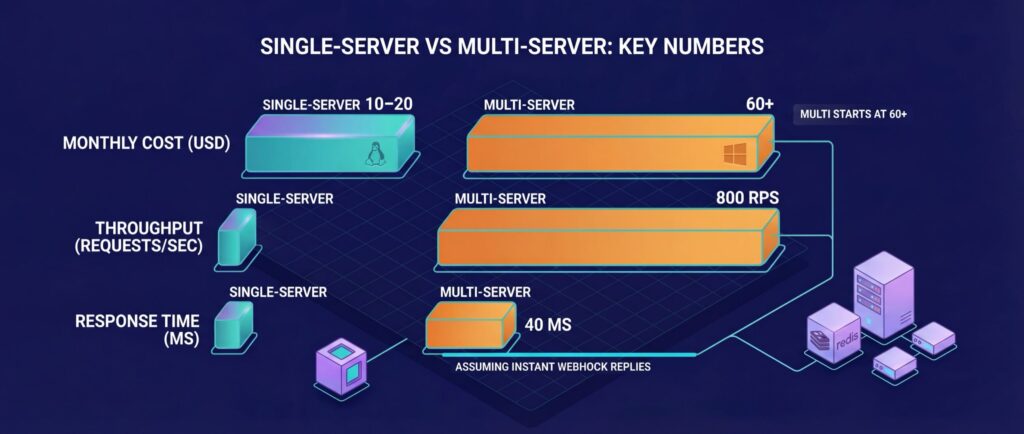
| Monthly Cost | $10–$20 (single VPS.us instance) | $60+ (multiple VPS instances and Redis) |
While costs rise with a multi-server setup, so do capabilities. A single-server option, like VPS.us’s KVM1‑US plan at $10/month, is sufficient for basic tasks. However, a multi-server deployment – requiring at least three instances for the main process, Redis, and workers – starts at $60+ monthly. This configuration can handle 800 requests per second with 40ms response times, assuming webhooks respond instantly rather than waiting for workflows to complete.
Monitoring and Troubleshooting
Scaling effectively requires constant monitoring to spot issues before they escalate. Keep an eye on Redis queue depth – a growing queue often signals lagging workers. Activate health check endpoints (QUEUE_HEALTH_CHECK_ACTIVE=true) to expose /healthz for basic status checks and /healthz/readiness for database and Redis connectivity. VPS.us’s AlwaysOn access feature can monitor these endpoints and trigger automatic recovery if a worker becomes unresponsive.
For long-term analysis, tools like Prometheus and Grafana are invaluable. Pay special attention to P99 execution duration percentiles to identify sluggish workflows. For immediate alerts, deploy Uptime Kuma. As your system grows, database performance may become a bottleneck. To address this, manually create indexes on the execution_entity table for startedAt, status, and workflowId. Additionally, set EXECUTIONS_DATA_PRUNE_MAX_COUNT to automatically delete old execution logs and prevent database bloat.
For Redis-related issues, RedisInsight can help inspect queue depth and troubleshoot stuck jobs. If jobs are “stuck in active”, it often means a worker crashed mid-task – restarting the worker usually resolves this. Networking problems, particularly with Redis connectivity on port 6379, are behind most stuck job issues. Use tools like docker stats and htop to monitor container and VPS resource usage. Finally, adjust N8N_WORKER_CONCURRENCY based on your workload: higher values (10–20) suit I/O-heavy API calls, while lower values (1–5) are better for CPU-intensive tasks.
Conclusion
Scaling n8n to a distributed setup involves several key steps: switching to Queue Mode, deploying Redis, migrating to PostgreSQL, running multiple workers, and adding a reverse proxy with sticky sessions. This setup separates the editor from the execution process, allowing your automation platform to handle hundreds of webhook calls per minute without slowing down.
VPS.us n8n plans provide the resources you need for such scaling, offering infrastructure designed for high-throughput production setups with low latency. By launching multiple smaller worker instances, you can increase parallel processing and improve fault tolerance, which helps avoid bandwidth issues during heavy webhook traffic. Features like AlwaysOn monitoring and rapid provisioning make horizontal scaling seamless, ensuring your automation platform adjusts quickly to spikes in demand. Together, these components create a reliable and efficient way to scale n8n for production use.