
If you’re deciding between Windows and Linux to run n8n on a VPS, here’s the bottom line: Linux is faster, uses fewer resources, and costs less, while Windows offers a GUI and easier integration with Windows-specific tools.
Key Takeaways:
- Linux: Better for performance, efficiency, and lower costs. It uses less memory (210 MB vs 820 MB on Windows) and has faster CPU and disk speeds. Ideal for production environments and high-concurrency workflows.
- Windows: Easier for teams needing a graphical interface or native Windows integrations like MSSQL. However, it consumes more memory and requires extra setup for service management.
Quick Comparison
| Feature | Linux | Windows |
|---|---|---|
| RAM Usage (Idle) | ~210 MB | ~820 MB – 1.8 GB |
| CPU Performance | 12,240 ops/sec | 11,100 ops/sec |
| Disk I/O (4K Read) | 91,000 IOPS | 78,000 IOPS |
| Ease of Setup | Simple via CLI | Requires extra tools (e.g., NSSM) |
| Cost | Lower (no license) | Higher (includes license) |
Who is this for?
- Choose Linux: If you want better performance, scalability, and cost savings.
- Choose Windows: If you need a GUI or rely on Windows-specific integrations.
Keep reading for a deeper dive into installation, benchmarks, and maintenance tips for both systems.
Installing n8n: Windows vs Linux
Installing n8n on Windows
Setting up n8n on Windows Server involves a few additional steps compared to Linux. First, ensure you have Node.js version 20.19 through 24.x installed and an account with Administrator privileges. You can install Node.js using winget or by downloading the manual installer. Once that’s done, run npm install -g n8n to install n8n globally.
One challenge with Windows is the lack of a built-in service manager. To keep n8n running as a service, you’ll need to use NSSM (Non-Sucking Service Manager). Without NSSM, your workflows will stop if the terminal closes or the server restarts.
If you’re using Docker on Windows Server, you’ll need to enable WSL 2 (Windows Subsystem for Linux) and the Virtual Machine Platform. This creates a Linux-like environment within Windows but does come with added memory and processing overhead – something to consider if your system has limited resources. As of October 2025, deployment guides recommend using WSL 2 with Docker Compose and PostgreSQL for production setups, alongside Caddy as a reverse proxy for HTTPS.
Another important step is opening port 5678 in Windows Defender Firewall. You can do this via PowerShell to ensure access to the n8n interface. Additionally, file paths in Docker configurations require extra care on Windows. Use full paths like C:\Users\Admin\.n8n instead of Linux-style paths, as the latter won’t work.
While n8n can run on Windows, the installation and service management processes are more straightforward on Linux.
Installing n8n on Linux
Linux offers a much simpler installation process for n8n. On systems like Ubuntu 22.04 or 24.04, start by updating the package index with sudo apt update. Then, install Node.js from the NodeSource repository and run npm install -g n8n to complete the installation.
The real strength of Linux lies in its built-in tools for managing services. With systemd, you can set up n8n to restart automatically and log activity without relying on third-party tools. All it takes is creating a basic n8n.service file in /etc/systemd/system/, and systemd handles everything from automatic restarts to logging via journalctl.
For Docker users, Linux provides native support for Docker Engine through the command line, avoiding the overhead of Docker Desktop. Most production setups use docker-compose with PostgreSQL for reliable data storage. Opening port 5678 is as simple as running ufw allow 5678.
One common issue with Docker on Linux is permission errors related to volumes. The n8n container runs as UID 1000, so you may need to fix permissions by running sudo chown -R 1000:1000 ~/.n8n.
In short, Linux not only simplifies the initial setup but also makes long-term management of n8n much easier compared to Windows.
Performance Benchmarks: Windows vs Linux
CPU and Memory Usage

Tests reveal that Linux is considerably more resource-efficient than Windows when running n8n. At idle, Linux uses between 210 MB and 600 MB of RAM, while Windows consumes significantly more – ranging from 820 MB to 1.8 GB. This difference is noticeable right from boot-up.
On the CPU side, Linux also takes the lead. In multi-core benchmarks using Sysbench, Linux achieved 12,240 operations per second, outpacing Windows’ 11,100 ops/sec by about 10%. Why does this matter? n8n can handle up to 220 workflow executions per second on a single instance. That extra CPU efficiency means you can push your VPS further before needing to upgrade.

Memory performance is another area where Linux excels. Linux delivers memory read speeds averaging 13,800 MB/s, compared to Windows’ 12,600 MB/s. For those running n8n on a VPS with 4GB of RAM, Linux’s smaller memory footprint means you can handle more workflows without triggering memory swapping, which would otherwise slow things down.
Now, let’s dive into how the two systems compare in disk I/O and network performance.
Disk I/O and Network Performance

Linux maintains its edge in disk operations, performing 15-20% better in random 4K read/write tests. It achieves 91,000 IOPS, while Windows lags behind at 78,000 IOPS. This advantage is critical for tasks like managing large datasets, logging executions, and running databases – especially if you’ve switched from SQLite to PostgreSQL for production environments.

When it comes to network performance, Linux pulls even further ahead. Running Nginx, Linux processes about 19,700 static requests per second, whereas Windows using IIS handles only 13,200 requests per second. If your n8n workflows rely heavily on webhooks or API calls, this difference can make or break your ability to handle high traffic without delays.
Linux also boots faster, averaging 18 seconds, and runs Python scripts 5% faster than Windows, further boosting overall responsiveness.
Here’s a breakdown of the performance metrics to give you a clearer picture.
Benchmark Test Results
Linux outperforms Windows in 7 out of 9 major performance categories, with Windows only showing an advantage in .NET API response times (19 ms vs Linux’s 32 ms). However, since n8n is Node.js-based, this difference is largely irrelevant.
| Benchmark Category | Linux (Ubuntu 24.04) | Windows (Server 2025) | Winner |
|---|---|---|---|
| Background RAM Usage | 210 MB | 820 MB – 1.8 GB | Linux |
| Sysbench CPU | 12,240 ops/sec | 11,100 ops/sec | Linux |
| Memory Read Speed | 13,800 MB/s | 12,600 MB/s | Linux |
| Random 4K Read IOPS | 91,000 | 78,000 | Linux |
| Static Requests/sec | 19,700 (Nginx) | 13,200 (IIS) | Linux |
| Python Script Runtime | 12.8 sec | 13.5 sec | Linux |
These performance differences aren’t just numbers – they directly impact scalability and cost. For large-scale deployments using 10+ VPS instances, Linux’s efficiency can reduce infrastructure expenses by up to 30-40%. Even on a smaller scale, the savings add up. For example, a 4 vCPU / 8 GB RAM Linux VPS costs around $22.25 per month, compared to $25.50 for Windows, which includes the added licensing fee.
Updates and Maintenance: Windows vs Linux
Windows Update and Maintenance
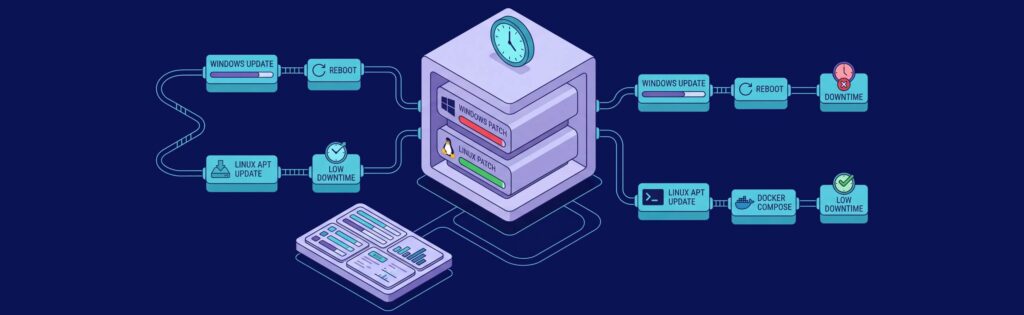
Windows manages its updates through Windows Update, which automatically delivers scheduled patches. These updates are resource-heavy, with patch sizes typically ranging from 200–500 MB, and they often require system reboots, which can take 60–120 seconds. For those hosting n8n, this means you’ll need to plan for downtime during these maintenance windows.
Updating n8n on Windows involves using npm commands or Docker Desktop. However, manual npm updates can sometimes encounter permission errors (EPERM), which require you to manually adjust permissions. Additionally, running n8n as a background service isn’t straightforward. To ensure n8n stays active after reboots or crashes, you’ll need to rely on third-party tools like NSSM (Non-Sucking Service Manager) or PM2.
Linux Update and Maintenance
Linux updates are handled via apt, with patches averaging just 40 MB. Unlike Windows, Linux rarely requires full system reboots, and when it does, reboot times are significantly shorter – around 15–30 seconds. For n8n, updates are typically managed using Docker Compose (docker compose pull followed by up -d), resulting in minimal downtime of about 1–2 minutes.
Linux also supports automation tools like Watchtower, which can monitor Docker images and automatically apply updates at regular intervals (e.g., every 24 hours). While this is convenient, it’s always a good idea to review release notes before applying updates in production to avoid unexpected issues.
These streamlined processes, combined with Linux’s efficient service management tools, make updates and maintenance much more manageable.
Service Managers: Windows Services vs systemd
Service management plays a critical role in keeping n8n running smoothly. Linux uses systemd, a native and highly reliable service manager that offers detailed control over service behavior. For example, you can configure settings like restart delays (RestartSec=10) and ensure automatic recovery from crashes – all through a single configuration file.
In contrast, Windows requires third-party tools like NSSM to achieve similar functionality. This adds extra complexity and additional steps to maintain reliability.
For production environments, Linux stands out as the more efficient and reliable option. While Windows can handle the job, it often requires more manual effort and comes with higher maintenance demands.
Windows vs Linux: Pros and Cons for n8n
Comparison Table: Windows vs Linux
Here’s a side-by-side look at how Windows and Linux compare when running n8n on a VPS. The data highlights key differences in performance, resource usage, and management:
| Feature | Linux (Ubuntu/Debian) | Windows Server 2025 |
|---|---|---|
| Idle RAM Usage | ~210 MB | ~820 MB |
| Boot Time | 18 seconds | 42 seconds |
| CPU Performance | 12,240 ops/sec | 11,100 ops/sec |
| Random I/O (4K) | 91,000 IOPS | 78,000 IOPS |
| Management Interface | CLI via SSH | GUI via Remote Desktop |
| Service Manager | systemd (native) | Windows Services (native) |
| Best For | Production, automation, cost efficiency | Teams needing a GUI or Windows-only integrations |
In September 2025, PetroSky conducted benchmarks comparing Ubuntu 24.04 and Windows Server 2025 on identical hardware (4 vCPU/8 GB RAM/NVMe). The results show that Linux consistently outperforms Windows in areas like boot speed, resource efficiency, and overall performance.
Factors to Consider When Choosing an OS
Your choice of operating system should reflect your team’s technical skills, budget, and workflow needs. While Linux offers impressive performance gains and cost savings, it may not always be the best fit for every scenario.
For teams lacking Linux expertise, Windows might seem like the simpler option – but that convenience comes at a higher cost. A managed Linux VPS eliminates the steep learning curve while keeping costs 15–25% lower than a comparable Windows setup. Beyond licensing savings, Linux’s efficiency means you can run n8n workflows effectively on minimal hardware, such as a 2 vCPU/4 GB RAM configuration. In contrast, Windows’ higher resource demands may require more powerful (and expensive) hardware to deliver the same performance.
That said, Windows is still the right choice in specific cases. If your team relies on a GUI for ease of use or n8n workflows need native Windows integrations – like MSSQL or legacy ASP.NET applications – Windows becomes a practical solution. For such scenarios, leveraging WSL 2 can provide a Linux-like environment within Windows, improving Docker performance and enhancing stability.
Conclusion
From the benchmarks and maintenance comparisons, it’s evident that Linux stands out as the better OS for running n8n on a VPS. It uses less memory, boots faster, and handles CPU tasks more efficiently. Plus, without licensing fees, VPS hosting costs can drop by 20–40%.
That said, Windows has its own perks. If your workflows depend on native Windows tools like MSSQL or legacy .NET applications, or if your team prefers a graphical interface, Windows might be the better fit. Features like Remote Desktop can make it easier for teams unfamiliar with command-line tools, and WSL 2 can offer a Linux-like experience within Windows.
Ultimately, your decision should weigh performance against ease of management. While Linux might require a bit more technical know-how upfront, managed VPS services can handle updates, security, and troubleshooting for you. For teams handling high-concurrency workflows or planning for scalability, Linux’s efficiency can handle 40–60% more concurrent processes on the same hardware compared to Windows.