
When cPanel services fail to restart, it can disrupt websites, emails, and server functionality. Common causes include resource shortages (CPU, memory, or disk space), misconfigured system dependencies, errors in configuration files, missing software dependencies, or port conflicts. These issues often stem from improper server management, outdated configurations, or unexpected spikes in resource usage.
Key Reasons for Restart Failures:
- Resource Constraints: Insufficient CPU, memory, or disk space leading to errors like “Out of Memory.”
- Systemd Issues: Dependency misconfigurations or outdated settings causing startup problems.
- Configuration Errors: Syntax mistakes, incorrect file permissions, or missing parameters in service files.
- Port Conflicts: Services unable to bind to required ports due to other processes or firewall rules.
- Missing Dependencies: Updates or changes leaving required software modules or libraries unavailable.
Quick Solutions:
- Check Logs: Review error logs (
/usr/local/cpanel/logs/error_log) to identify specific issues. - Monitor Resources: Use tools like
topor cPanel’s “Resource Usage” to spot bottlenecks. - Verify Configurations: Inspect and fix configuration files, permissions, and database connections.
- Resolve Port Issues: Ensure required ports (e.g., 2087, 2083) are open and unblocked by firewalls.
- Update Dependencies: Reinstall or update missing PHP modules, libraries, or system packages.
Restart failures can lead to downtime, data corruption, and customer dissatisfaction. Regular maintenance, resource monitoring, and expert support can prevent these issues and ensure smooth server operations.
Common Reasons Why cPanel Services Fail to Restart

Restarting cPanel services on VPS environments can sometimes fail due to technical challenges. These issues often arise from predictable causes, which can be addressed with proper management and monitoring.
Resource Issues: CPU and Memory Constraints
One of the most frequent culprits behind cPanel restart failures is resource limitations. If your VPS doesn’t have enough RAM, CPU power, or storage, services may struggle to initialize properly.
Memory shortages are particularly troublesome. Insufficient memory can lead to “Out of Memory” (OOM) errors, which often result in HTTP errors like 508, 500, or 503, making services inaccessible.
CPU limitations can also disrupt restarts. For instance, a basic WordPress site with a few plugins and no caching can consume about 1 second of CPU time per request. When multiple sites or applications compete for limited CPU resources, restarts may time out or fail.
Take this example: In July 2015, a cPanel user running WHM and CloudLinux on a VPS experienced slow website load times of 4–5 seconds, despite achieving disk I/O speeds of 371 MB/s. The issue was resolved by increasing the I/O limits within the Lightweight Virtual Environment (LVE).
High resource usage can stem from multiple factors, including:
- Inefficient scripts
- DDoS attacks
- Outdated plugins or memory leaks
- Traffic spikes that exceed available resources
Systemd and Dependency Challenges
Modern Linux systems use systemd to manage service dependencies and restart policies. However, misconfigurations or dependency failures in systemd can prevent cPanel services from restarting properly, leading to broader disruptions.
One key limitation lies in the “Restart=on-failure” setting, which applies only to process failures – not dependency failures. If a required service fails to start, dependent cPanel services won’t restart automatically, even if their individual restart policies are configured correctly.
Older versions of systemd (pre-220) had a bug that caused unexpected dependency restarts, which could affect legacy systems. Other issues, such as incorrect settings in systemd unit files (e.g., Requires, After, or Wants directives), can create circular dependencies or improper startup sequences, often going unnoticed until a restart attempt fails.
For example, one VPS user faced repeated downtime due to cPanel services failing with “Connection Refused” errors tied to Netlink.pm. The root cause was traced back to a shared kernel architecture and request floods from multiple IPs, which created dependency conflicts that blocked proper service restarts.
Configuration Errors and Missing Dependencies
Configuration mistakes are another common reason for restart failures. Syntax errors, incorrect file paths, missing parameters, or improper file permissions in configuration files can stop services from initializing. Services running under specific user accounts require the correct read, write, and execute permissions for their configuration files, log directories, and working directories. Any mismatch can lead to cryptic errors or outright failures.
Missing dependencies can also be a problem. Many cPanel services rely on specific PHP modules, database connections, or system libraries. If these dependencies are missing or misconfigured – often after system updates – restart attempts will fail. Database connectivity issues add another layer of complexity. When MySQL or MariaDB services are unavailable, misconfigured, or limited by connection thresholds, dependent cPanel services won’t restart successfully.
Port Conflicts and Firewall Rules
Port conflicts are a frequent cause of restart failures. cPanel services require specific ports to function – for example, port 2087 for WHM, port 2083 for cPanel, and ports 25, 465, and 587 for email services. If another service is already using one of these ports, cPanel services cannot bind to them, resulting in “address already in use” errors.
Firewalls can also block services from accessing the ports they need. While firewalls are essential for security, overly restrictive rules can unintentionally block legitimate communication, preventing services from starting.
In August 2017, sendmedialtd identified that SMTP connection errors on cPanel/WHM servers were caused by SMTP restrictions in WHM’s Security Center and the Config Server Firewall. The fix involved disabling SMTP restrictions, adding the account username to SMTP_ALLOWUSER, and ensuring that ports 25, 465, and 587 were open in the firewall configuration.
Understanding these core issues is the first step in resolving cPanel service restart problems effectively.
How to Troubleshoot and Diagnose Problems
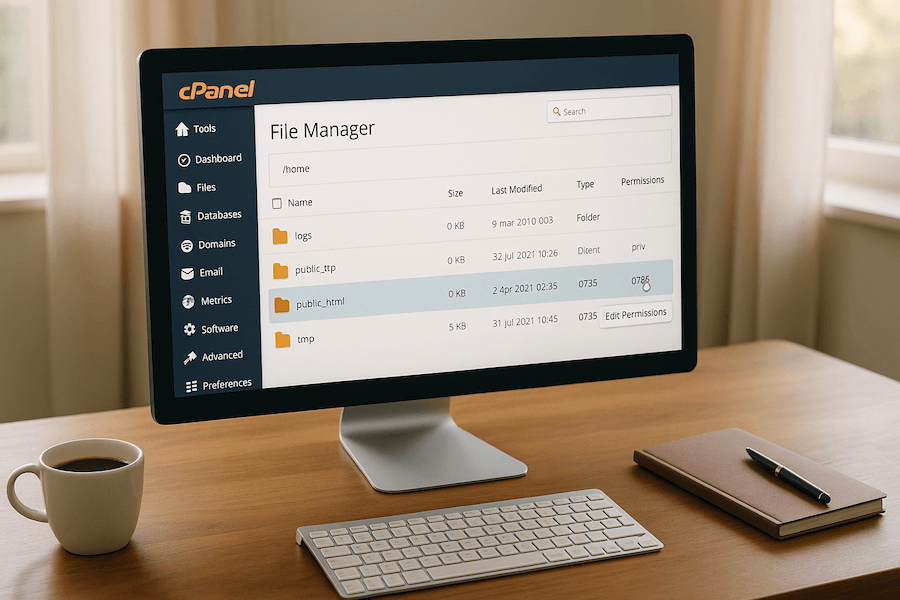
When cPanel services refuse to restart, a structured troubleshooting process can help pinpoint the issue quickly. The trick lies in knowing where to look and which tools to use for an effective diagnosis.
Reading Logs and Error Messages
Log files are your go-to resource for diagnosing restart issues. cPanel maintains several logs that capture different types of errors and service problems. Start with the main cPanel error log located at /usr/local/cpanel/logs/error_log to catch general cPanel and WHM errors. From there, dive into logs specific to the service experiencing trouble.
For example:
- Apache error logs (
/var/log/apache2/error_log) help identify web server issues, including the common 500 errors. - MySQL logs (
/var/log/mysqld.logor/var/lib/mysql/HOSTNAME.err) reveal database-related problems. - Email service logs provide insights into mail delivery and severe errors. Check
/var/log/exim_mainlogfor delivery issues and/var/log/exim_paniclogfor critical errors.
iManila Support, in July 2024, suggested an organized approach to log analysis. They recommended administrators also check /var/log/messages for system-wide errors and login attempts related to FTP, nameserver daemons (like named, bind, or PowerDNS), SSH (sshd), and mail servers (Courier or Dovecot). Additionally, /var/log/secure is useful for tracking SSH login attempts.
Here’s a quick reference table for key log files:
| Log File | Purpose |
|---|---|
/usr/local/cpanel/logs/error_log | General cPanel & WHM errors |
/var/log/apache2/error_log | Web server and CGI application errors |
/var/log/mysqld.log | MySQL database errors |
/var/log/exim_mainlog | Email receipt and delivery logs |
/var/log/chkservd.log | Service status monitoring logs |
/var/log/messages | General system error messages |
To dig deeper, use commands like systemctl status [service-name] to check the status of a service or journalctl -xe for detailed system logs. Once you’ve reviewed the logs, move on to assessing resource usage.
Checking Resource Usage
Resource limitations are a common cause of restart failures, so monitoring resource usage is essential. Within cPanel, the “Resource Usage” section under Metrics provides a quick overview of CPU, memory, bandwidth, and disk space. For more detailed analysis, SSH into the server and use command-line tools like free, top, and vmstat.
- Memory shortages often show up as “Out of Memory” errors or HTTP 500/503/508 statuses. Use
free -mto check available memory andtopto identify processes consuming excessive resources. - CPU bottlenecks can cause services to time out during restarts. Look for processes with high CPU usage in
toporhtopand investigate potential causes like traffic spikes, inefficient scripts, or DDoS attacks. - Disk space issues can prevent services from writing necessary files during startup. Use
df -hto check available disk space anddu -sh *to locate storage-heavy directories.
If resource usage appears normal, the next step is to verify service configurations.
Verifying Service Configurations
Service configurations must be accurate for successful restarts. Even minor errors in configuration files can disrupt the startup process. Begin by checking the relevant configuration files for syntax errors, incorrect file paths, or missing parameters.
- File permissions are critical. Services require proper read, write, and execute permissions for their configuration files, log directories, and working directories. Use
ls -lato inspect permissions andchmodorchownto correct any discrepancies. - Database connectivity is another frequent issue. Ensure MySQL or MariaDB is running, check connection limits, and verify that database credentials in configuration files are correct. Errors like “too many connections” or connection timeouts often indicate database-related problems.
- Dependencies can also cause trouble. After updates, missing or incompatible PHP modules, system libraries, or other components might prevent services from starting. Use package managers like
yumoraptto reinstall any missing dependencies.
Always back up configuration files before making changes.
For restarting services, log in to the WHM server’s root directory and use service cpanel restart. Alternatively, navigate to /etc/rc.d/init.d and run ./cpanel restart. Monitor logs during the restart to catch any immediate errors.
Some specific configurations, like DNS and email settings, may need extra attention. Remove custom DNS records that conflict with default settings, and if email services fail, try removing and re-adding email accounts. For web services, resetting .htaccess or php.ini files to their default states can resolve startup issues.
If applications like WordPress are causing conflicts, consider reinstalling them. This clears problematic custom configurations, plugins, or themes that might interfere with service restarts.
Solutions and Best Practices to Prevent Failures

Avoiding service downtime requires a proactive approach. By adopting preventive strategies and adhering to best practices, you can significantly lower the chances of cPanel service restart failures in your VPS hosting environment.
Improving Resource Allocation
Efficient resource management is key to preventing cPanel restart failures. Ensuring adequate CPU, memory, and disk space is critical. Regularly monitor resource usage to spot potential problems before they escalate into service interruptions.
Before considering hardware upgrades, focus on optimizing your existing setup. Review your website code to eliminate redundant loops, memory leaks, or other inefficiencies. Fine-tune caching mechanisms, data retrieval processes, and resource settings within your applications. Implement Opcode or Object Caching to ease server load.
Databases are often resource-intensive, especially during service restarts. Regular maintenance, like cleaning up and optimizing database tables, can free up memory and disk space. Remove unnecessary data, such as draft posts, spam comments, or outdated content, to improve performance.
If your optimization efforts hit a ceiling, it may be time to upgrade your hosting plan. Compare your current plan’s CPU, memory, and bandwidth limits with your actual usage. If your applications or websites have grown substantially, consider switching to a plan with more resources.
Once your resources are in check, shift your focus to keeping your software environment up to date.
Regular Updates and Maintenance
Keeping your cPanel and server software updated is one of the simplest ways to prevent restart failures. Updates address compatibility issues and ensure that dependencies remain aligned, reducing the risk of conflicts that could disrupt operations.
Perform system-wide updates regularly using package managers. For instance, on CentOS-based systems, running yum update ensures dependencies stay in sync with your cPanel installation.
Leverage cPanel’s built-in maintenance scripts for troubleshooting. The /scripts/check_cpanel_pkgs --fix script, for example, can detect and resolve missing dependencies. A real-world example from June 2020 highlights how this script resolved a failed cPanel update caused by unmet Dovecot dependencies. It identified and reinstalled missing RPMs like cpanel-git, cpanel-mailman, and exim, allowing the update to proceed smoothly.
Automating maintenance tasks can further minimize human error. Set up automated backups to safeguard your data before making changes, and use tools like top, htop, or WHM’s monitoring features to keep an eye on server load and address issues proactively.
Once updates and maintenance are under control, ensure your network settings support these improvements.
Firewall and Network Configuration
Proper firewall settings are essential for preventing port conflicts and ensuring smooth cPanel communications. Strengthen your server’s security by updating firmware, enforcing strong passwords, and limiting access to necessary IPs and ports. Tools like ConfigServer Security & Firewall (CSF) can help you manage these rules effectively.
Avoid broad “Any/Any” rules in your firewall configuration, as they can introduce vulnerabilities. Instead, create specific rules that define source and destination IPs and ports. Blocking unused ports reduces your server’s exposure to attacks while keeping essential cPanel ports accessible.
CSF integrates seamlessly with cPanel and WHM, offering granular control over firewall rules. Use it to allow necessary cPanel services while blocking potentially harmful traffic. Regularly audit and update your firewall rules to prevent configuration drift and remove outdated entries. Monitor firewall logs for suspicious activity and adjust settings as needed.
“Proper firewall configuration is essential, as default features may not provide maximum protection against a cyberattack.” – Fortinet
Beyond firewall rules, protect your server from DDoS attacks that could overwhelm it and disrupt service restarts. Group related rules into address and service sets to simplify management and minimize conflicts.
Adjusting Monitoring Thresholds
cPanel’s chkservd monitoring system can sometimes misinterpret high-load periods or routine maintenance as service failures, leading to unnecessary restart attempts. These false positives can cause more harm than good.
To avoid this, adjust chkservd thresholds to align with your server’s typical load patterns. Use WHM to access chkservd settings and review the thresholds for each monitored service. For services that require more time to respond during peak usage, consider increasing timeout values.
Customizing monitoring rules can often be more effective than relying on default settings. Test any changes thoroughly to ensure they catch genuine issues without masking real problems. Document your adjustments so they can be reverted if needed.
In VPS environments, remember that shared hardware can lead to brief performance fluctuations. These temporary dips may not indicate actual service issues but could trigger overly sensitive monitoring systems. Adjust thresholds accordingly to account for these nuances.
Impact of Restart Failures on VPS Hosting
When cPanel services fail to restart consistently, the repercussions can go well beyond a minor inconvenience. Such failures have the potential to disrupt business operations and even lead to data corruption. Recognizing these risks highlights the importance of dependable hosting and proactive maintenance strategies.
Downtime and Business Disruption
Failures in restarting services often result in website and email outages. If critical services like Apache, MySQL, or Exim are affected, your websites may become inaccessible, email communication could grind to a halt, and customers might be left unable to access your offerings. These interruptions can have serious financial consequences: e-commerce sites risk losing immediate sales, while service-based businesses may face canceled appointments and unhappy clients. Even short-lived outages can lead to customer complaints, support tickets, and long-term damage to your reputation.
“Downtime isn’t just an inconvenience; it’s a direct hazard to your business. But with the right tools, planning, and awareness, you can considerably reduce the risk and recover faster when issues arise.” – bodHOST
Repeated service failures can also harm your search engine rankings. Search engines like Google take site availability into account, meaning frequent outages may reduce your online visibility over time. These disruptions erode customer trust and can have lasting effects on your business’s credibility.
Data Loss and Corruption Risks
Frequent restart failures also pose a significant risk to data integrity, especially in high-traffic environments where databases are updated constantly. Incomplete restarts can interrupt transactions, leading to data corruption. For example, MySQL’s InnoDB storage engine is designed to maintain data consistency by adhering to strict ACID compliance. If it detects inconsistencies, it may crash MySQL entirely to prevent further corruption. While this safeguard protects your data, it also means that unstable service restarts can cause additional interruptions.
Data corruption can show up in various forms: missing files, empty records, or even mixed-up data. Binary files and database tables may also become unreadable, requiring complex recovery efforts. In MySQL installations, default redo log files like ib_logfile0 and ib_logfile1 – set to 48 MB each in version 5.6.8 and later – are particularly vulnerable during improper shutdowns. Each failed restart not only worsens existing issues but also creates new risks, making careful recovery and preventative measures essential.
Reducing Risks with Reliable Hosting Solutions
These challenges highlight the importance of choosing a dependable hosting provider equipped with enterprise-grade hardware, proactive monitoring, and responsive support. Security vulnerabilities account for over 60% of server reliability issues and downtime, underscoring the need for strong preventive measures.
A robust hosting solution is key to minimizing disruptions. VPS.us offers specialized VPS hosting designed to prioritize uptime with enterprise-grade hardware, strict monitoring, and 24/7 expert support to mitigate restart failure risks. With global redundancy and high-quality infrastructure, VPS.us reduces the chances of conflicts and extended outages. Features like unmetered traffic and root access give you the flexibility to optimize and monitor your server environment based on your specific needs.
Most importantly, VPS.us provides round-the-clock access to technicians skilled in managing cPanel environments. When restart failures occur, having immediate expert assistance can make the difference between a brief hiccup and a prolonged outage. While a typical VPS reboot only takes 1–5 minutes, reliable infrastructure ensures that such interruptions remain minimal, keeping your operations running smoothly.
When to Get Expert Support
Sometimes, despite your best efforts, a technical issue just won’t budge. That’s when it’s time to call in the pros. Knowing when to escalate to expert support can save you from wasting time and turning a small hiccup into a major headache for your business.
Recognizing Complex or Persistent Problems
There are clear signs that signal when professional help is necessary. For example, repeated system-level errors often point to deeper conflicts that require advanced troubleshooting beyond the basics. A case in point: in March 2024, a cPanel user struggled with persistent failures while restarting php-fpm. Neither WHM nor command-line scripts could resolve the issue, illustrating how some problems demand expert attention.
Another red flag is ongoing resource exhaustion without an obvious cause. When a server consistently runs out of resources, it often indicates complex interactions between multiple services – issues that need a seasoned technician to untangle. Other warning signs include recurring service failures, persistent “Activation of org.freedesktop.systemd1 timed out” errors, or suspected security breaches. If these problems persist despite your efforts, it’s time to bring in the experts.
Conclusion: Ensuring Reliable cPanel Service Restarts
Keeping cPanel services running smoothly is all about staying ahead of potential problems instead of scrambling to fix them after the fact. The key lies in combining smart diagnostics, regular maintenance, and a dependable hosting setup that can handle today’s demands. In short, stable cPanel restarts depend on three core elements: effective resource management, strong security, and high-quality hosting.
First, resource management is critical. Without enough CPU power, RAM, or disk space, cPanel operations can falter. Regularly monitoring these resources helps flag issues before they escalate into major problems.
Next, security plays a vital role in maintaining service stability. Using tools like ModSecurity and cPHulk creates multiple layers of protection against common threats. These measures not only block attacks but also prevent the kind of security breaches that could lead to extended downtime.
Speaking of downtime, it’s expensive – averaging $5,600 per minute. That’s why having enterprise-level hosting infrastructure is non-negotiable. VPS.us, for example, delivers dependable uptime through its KVM VPS hosting, offering root access, resource isolation, and advanced monitoring. With a 99.9% uptime guarantee, equating to just 8.76 hours of downtime annually, this setup provides a rock-solid base for cPanel operations
Frequently Asked Questions
How can I troubleshoot when my cPanel services fail to restart?
How can I avoid cPanel service failures when restarting due to limited VPS resources?