
File permissions in cPanel control who can read, modify, or execute your website files. Incorrect permissions can cause 403 Forbidden errors, break website functionality, or expose your site to security risks. Here’s what you need to know:
Proper file permissions keep your site secure and functional. If issues persist, check for automated processes changing permissions or contact your hosting support for help.
If your site is throwing a 403 Forbidden or “Permission Denied,” 95% of the time the fix is: files → 644, directories → 755, and your index file plus its folder set correctly. Never use 777. If you have SSH access, you can fix an entire site in two commands (run them inside your site’s document root, never your home directory):
cd ~/public_html        # your site's document root — NOT your home dir
find . -type f -exec chmod 644 {} \;
find . -type d -exec chmod 755 {} \;
That sets every file to 644 and every folder to 755 in one pass. The rest of this section explains what those numbers mean, why 777 will bite you, and how to handle the special cases (like WordPress’s wp-config.php) that the blanket command shouldn’t touch.
What 644 and 755 Actually Mean
Each digit is a permission set — owner, group, everyone else — and the number is the sum of read (4), write (2), and execute (1). Here’s the only cheat sheet you need:
| Value | Owner | Group | Others | Use it for |
|---|---|---|---|---|
| 644 | read + write | read | read | Files — HTML, CSS, PHP, images |
| 755 | read + write + execute | read + execute | read + execute | Directories (the execute bit lets you enter them) |
| 600 | read + write | none | none | Secrets — wp-config.php, .env, key files |
| 777 | read + write + execute | read + write + execute | read + write + execute | Never. See below. |
How File and Directory Permissions Work in cPanel
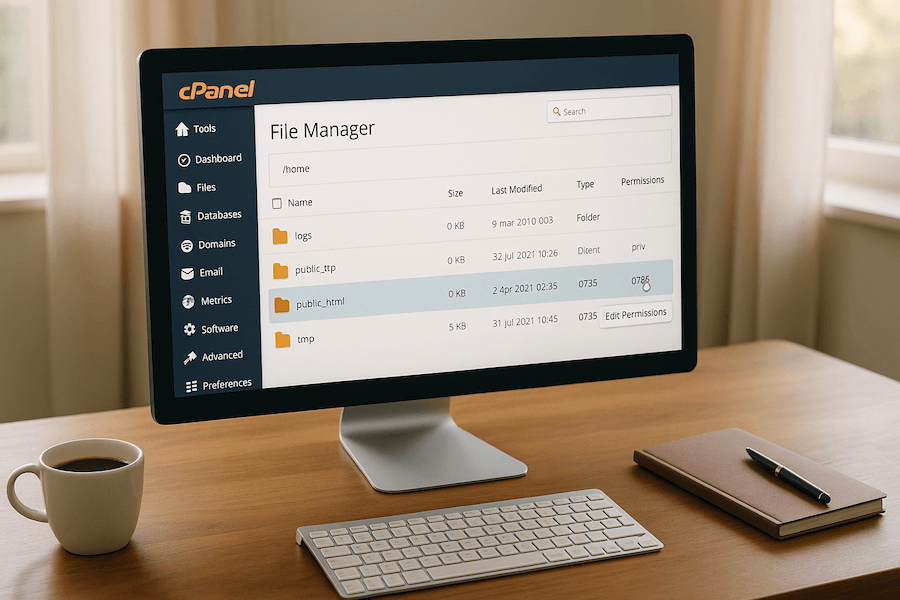
File permissions in cPanel act as a safeguard for your website files. They control who can read (view content), write(make changes), and execute (run scripts or access directories). These permissions are assigned to three groups: the file owner, the group, and everyone else.
Permissions in cPanel are represented using a numerical system. Each action – read, write, and execute – is assigned a value: 4 for read, 2 for write, and 1 for execute. By adding these values, you get the permission level. For instance, full access (read + write + execute) is represented by 7 (4 + 2 + 1).
In cPanel’s File Manager, permissions appear as three-digit numbers like 644 or 755. Each digit corresponds to a group: the first digit is for the owner, the second for the group, and the third for everyone else.
Standard Permission Settings for Files and Directories
Different files and directories need specific permission settings to function properly and stay secure. Incorrect permissions can lead to website errors or open the door to security threats.
| Item Type | Recommended Permission | Purpose |
|---|---|---|
| public_html directory | 750 | Main website folder – owner can read/write/execute, group can read/execute |
| Regular folders | 755 | Standard directories – owner has full access, others can read/execute |
| CGI and Perl scripts | 755 | Scripts that need to run on the server |
| HTML, PHP, and document files | 644 | Web files – owner can read/write, others can only read |
When you create files or directories in cPanel’s File Manager, default permissions are automatically applied. Directories usually get 755, while files are set to 644. These defaults strike a balance: they allow the web server to display files to visitors while preventing unauthorized changes.
Knowing these standard settings can help you avoid the risks of misconfigured permissions.
Problems Caused by Wrong Permissions
Incorrect permissions can cause two big issues: security vulnerabilities and functional errors.
Overly permissive settings, like 777, give everyone full read, write, and execute access. This can expose your site to unauthorized changes, deletions, or data theft. For example, a file with 777 permissions allows anyone to modify it, which could lead to malicious attacks.
On the flip side, permissions that are too restrictive can block legitimate processes. For instance, overly strict settings might cause “403 Forbidden” or “Permission Denied” errors if files or directories can’t be accessed. Content management systems like WordPress require specific permissions to install plugins, upload media, or update themes. Misconfigured permissions can break these functions, leading to operational headaches.
Proper permission management is crucial for keeping your website secure and functional. Common issues often arise from manual changes, server updates, or scripts that unintentionally alter permissions without your knowledge.
Common Permission Errors and Their Causes
Now that we’ve covered the basics of file permissions, let’s dive into some common errors and what typically causes them.
When file permissions aren’t set up correctly, you’ll often run into error messages that point to access problems. Knowing what these errors mean and where they come from can save you a lot of time when troubleshooting.
Common Errors: “403 Forbidden” and “Permission Denied”
The 403 Forbidden error is a well-known sign of misconfigured permissions. Depending on the specific permissions at fault, this error can impact anything from a single file to an entire directory – or even your whole website.
On the other hand, Permission Denied errors, which you’ll usually spot in server logs, occur when actions are blocked due to insufficient permissions. These errors can surface in several ways:
- Web pages that fail to load or just show a blank screen
- Missing or broken images, CSS, or JavaScript files
- CMS tools (like WordPress features) suddenly not functioning
- File uploads failing to complete
- Scripts not running as they should
What Causes Permission Problems?
Permission issues don’t happen out of nowhere. They’re usually triggered by specific actions or events on your server. Here are some of the usual suspects:
- Incorrect permissions on uploaded files: Files uploaded to your server might inherit permissions that don’t work for their intended use.
- Manual permission changes: Adjustments made through tools like cPanel’s File Manager or FTP clients can unintentionally affect the wrong files.
- Server updates or migrations: Moving your site to a new server, updating server software, or altering ownership settings can unexpectedly change permissions.
- Corrupt or misconfigured .htaccess files: A problematic
.htaccessfile can block access to key files or folders. - Errors in scripts or applications: Automated processes, like CMS updates, often create, modify, or delete files. If permissions are too restrictive, these operations can fail.
These problems aren’t just about annoying error messages. Incorrect permissions can leave your website exposed to security risks. In fact, human error accounts for 95% of cybersecurity breaches, and misconfigured permissions are a common culprit.
Up next, we’ll walk through the steps to fix these issues and get your permissions back on track.
How to Fix File Permissions in cPanel: Step-by-Step

If you’re dealing with file permission issues, cPanel’s File Manager is a great tool to help you fix them. Here’s a straightforward guide to get you started.
Using File Manager to Check and Change Permissions
The File Manager in cPanel makes it simple to diagnose and resolve permission problems. Here’s how to use it effectively:
Accessing File Manager
Log in to your cPanel account and open File Manager. Navigate to the file or folder that’s causing issues. This might be your main website directory, a specific script, or a file that’s not functioning as expected.
Checking and Modifying Permissions
To check permissions, select the file or folder and either look at the details panel or right-click and choose View Permissions. If you need to make changes, right-click the item and select Change Permissions. A dialog box will appear where you can adjust the settings for User, Group, and World.
Recommended Permission Settings
Here are the standard permission settings you should use:
- Files: 644 (User can read and write; Group and World can only read)
- Directories: 755 (User can read, write, and execute; Group and World can read and execute)
- Configuration files (e.g.,
wp-config.php): 640 (User can read and write; Group can read; no access for World)
For example, to set 644 on a file, check Read and Write for User, and only Read for Group and World. For directories with 755, check Read, Write, and Execute for User, and Read and Execute for Group and World.
Applying Changes
Once you’ve made your adjustments, click Change Permissions to save. The changes are applied instantly, so you can test your website right away to see if the issue is resolved.
Managing Multiple Files
If you need to update permissions for several files at once, hold Ctrl (or Cmd on Mac) and click each file. Then, adjust permissions for all selected items in one go.
Best Practices for Managing Permissions
To maintain a secure and functional setup, keep these tips in mind:
Limit Write Access
Grant write access only to the file owner whenever possible. Avoid giving write permissions to Group or World unless absolutely necessary, as this can expose your site to security threats.
Avoid 777 Permissions
Never use the 777 setting, which allows anyone to read, write, and execute. If a script or app asks for 777 permissions, look for alternative solutions or consult support.
Test After Changes
Always test your website after updating permissions. Ensure that pages load, images display properly, and interactive features work as intended.
Secure Sensitive Files
Pay close attention to files like configuration files and vendor directories. Use more restrictive permissions for these – configuration files often work best with 640, while vendor directories usually require 755.
Perform Regular Audits
Regularly review your file permissions, especially after updates, migrations, or adding new features. This proactive approach can help you catch potential problems early and keep your site running smoothly.
Why 777 Is the Permission That Gets Sites Hacked
When a forum tells you to “just chmod it to 777 to make the error go away,” that advice is how sites get compromised. 777 gives everyone — including any other user on a shared server and any attacker who finds a way in — full read, write, and execute rights on your file. On a script like a PHP file, that means an attacker can overwrite it with their own code and run it. The 403 error you’re trying to fix is almost always solved by 644/755; 777 doesn’t fix the underlying issue, it just paints a target on your site. If a plugin genuinely needs to write to a folder, 755 (or 775 with the right group ownership) is the correct answer, not 777.
This is also where running your own VPS pays off versus crowded shared hosting: on a KVM VPS you’re the only tenant, so even a momentary loose permission isn’t exposing your files to a building full of neighbors. Lock it down properly with our SSH key security best practices.
403 Forbidden Troubleshooting Table
A 403 isn’t always a file-permission problem. Work down this list — it’ll save you from chmod-ing things that were never the issue:
| Symptom | Likely cause | Fix |
|---|---|---|
| Whole site 403 | Document root or index file mis-permissioned | Set public_html to 755, index.php/index.html to 644 |
| One folder 403 | Directory missing the execute bit | chmod that directory to 755 |
| “Index of /” listing instead of site | No index file found / directory indexing | Confirm index file exists & is 644 |
| 403 after a plugin/upload | Wrong ownership or an .htaccess deny rule | Check .htaccess, verify file owner matches the cPanel user |
The Home-Directory Warning (Read Before You Bulk-chmod)
One critical caveat: never run the bulk find/chmod commands inside your home directory (~/ or /home/username). Many folders there — .cpanel, mail, .ssh, etc — use custom permissions on purpose. Flattening them to 644/755 can break cPanel itself, lock you out of SSH, or corrupt mail delivery. Always cd into the specific site’s document root (public_html or the addon-domain folder) first. The .ssh directory in particular must stay 700, and its keys 600, or SSH will refuse them — covered in our SSH “Permission Denied (publickey)” fix.
Fixing Ongoing Permission Problems
Permission issues can be frustrating, especially when they keep coming back. Often, this happens because automated processes are overriding your settings. Let’s dive into how you can identify and tackle these recurring problems.
Finding Automated Processes or Scripts
If permissions keep resetting to problematic values, it’s likely an automated script or process is at play.
Check Your Cron Jobs
Start by reviewing your cPanel cron jobs. Look for commands involving chmod or anything that might change file permissions. These scripts might be running on a schedule – daily, weekly, or even at specific times – undoing your manual changes.
Also, take a close look at backup scripts, security plugins, or maintenance tools. Many of these include automated permission adjustments as part of their routine.
Review Error Logs
Your error logs can provide valuable clues. Pay attention to recurring “403 Forbidden” errors, especially if they happen at consistent times. For example, if you notice these errors every Tuesday at 2:00 AM, that’s a strong indicator of an automated process running on a schedule.
Investigate the FileProtect Script
Some hosting environments use a fileprotect script to enhance security by automatically adjusting permissions. If this script is active, try disabling it temporarily to see if it’s causing the resets.
Examine Recent Software Updates
Updates to content management systems like WordPress or Joomla – or even custom applications – can also change file permissions. If these issues started after a recent update, check the update logs or documentation for any notes about permission changes.
If none of these steps solve the problem, it might be time to bring in expert support.
Getting Expert Support from VPS Providers
If resetting permissions to 755 for directories and 644 for files doesn’t fix the issue, reaching out to your VPS.us support team is the next step. Be prepared with detailed information to help them assist you effectively.
Preparing for Support Contact
Gather all the relevant details before contacting support. This includes:
- Exact error messages and their timestamps from your logs
- A summary of the troubleshooting steps you’ve already tried (e.g., changing permissions, disabling scripts, reviewing updates)
- Any recent changes to your server environment, such as new software installations, configuration changes, or migrations
What Expert Support Can Provide
The VPS.us support team is available 24/7 and offers advanced diagnostic tools. With data centers spread across the United States, Europe, Asia, and Africa, they can analyze your server at a deeper level. They’ll check for issues like system-level security policies, server configurations, or hosting environment settings that might be interfering with your permissions. Thanks to their enterprise-grade hardware and root access capabilities, they can also help you implement more advanced permission management strategies to prevent future conflicts.
Conclusion: Maintaining Proper File Permissions for Secure cPanel
Keeping your file permissions in check is a critical part of ensuring your cPanel security. Throughout this guide, we’ve gone over the key permission settings – 644 for files, 755 for directories, and 640 for sensitive system files – as well as the common pitfalls that can cause issues for your website.
To stay ahead of potential problems, make it a habit to review permissions in cPanel’s File Manager, especially after updates, plugin installations, or any major changes. Keep an eye on automated tasks and error logs to catch and address any unintended changes before they escalate.
If you find yourself stuck or dealing with complex permission problems, don’t hesitate to reach out for help. VPS.us provides round-the-clock expert support and enterprise-grade infrastructure in 17 global data center locations, ready to assist with even the toughest challenges.
Frequently Asked Questions
How do I find files or directories with incorrect permissions in cPanel?
What should I do if my website still shows permission errors after fixing file permissions in cPanel?
What security risks come with setting file permissions to 777, and how can I avoid them?
How do I fix a 403 Forbidden error in cPanel?
Is it ever safe to use chmod 777?